

Work on a copy and lock the parts you don’t want changed, then store the master in the cloud so you can restore earlier versions if something goes wrong. Save a Copy (or Open as Copy) before you touch anything when AutoSave is on, protect formulas and critical ranges with worksheet protection, and keep the master file in OneDrive or SharePoint where Version History has your back.
TL;DR:
- When AutoSave is on, every edit syncs to the master immediately; turn it off temporarily for experiments, then turn it back on after reviewing changes.
- To preserve formula cells while allowing data entry, unlock only input cells before Protect Sheet, then choose permitted actions and set a password.
- A regular paste can erase a dropdown’s validation rule; protect the sheet and use Paste Special with Values Only, or create a dedicated input sheet for frequent updates.
- Microsoft 365 keeps up to 500 versions of a file by default, but admins can add count or time limits, so check your organization’s settings before relying on recovery.
- Automation should match records by a unique identifier, not row position; test new scripts on a copy and log each change for review.
Table of Contents
- Quick fixes: Save a Copy, Open as copy, and AutoSave tips
- Protecting formulas and workbook structure with Excel’s protection levels
- Preventing dropdown and data-validation overwrites
- Restoring earlier versions with OneDrive and SharePoint Version History
- Safer sharing workflows that stop you from emailing spreadsheets
- Automation-safe practices: upsert instead of blind overwrites
- The habit that actually sticks
- An alternative: turn your spreadsheet workflow into a controlled app
- FAQ
- Sources
- Recommended
Quick fixes: Save a Copy, Open as copy, and AutoSave tips
If you only do one thing today, do this: before you start editing a shared file, go to File > Save a Copy (or File > Save As) and work in that duplicate instead. When AutoSave is turned on, every change you make syncs straight to the master file in real time, so saving a copy before editing is what keeps your edits on a separate file instead of overwriting the original.
A few more habits worth building into your routine:
- Use File > Open > Open as Copy to create an editable duplicate with its own filename, no extra steps needed.
- Turn AutoSave off temporarily when you want to experiment freely, then turn it back on once you’re confident in the changes.
- Mark a file as Read-Only Recommended or “Mark as Final” when you want casual viewers to pause before editing, though neither one blocks a determined editor.
Pro Tip: Rename your working copy with a date or your initials right away, like “Budget_2026_Rickard_draft,” so nobody mistakes it for the master.
Both Mark as Final and Read-Only Recommended act as polite warnings rather than locks, which is exactly why they work better as a second layer than as your only defense.
Protecting formulas and workbook structure with Excel’s protection levels
Excel offers separate protection levels, and mixing them up is one of the most common reasons files still get ruined. File-level, workbook, and worksheet protection each stop a different kind of damage: file-level protection requires a password just to open the document, workbook structure protection stops people from adding, deleting, or rearranging sheets, and worksheet protection locks individual cells from being edited.
To protect your formulas without locking out legitimate input, follow this order:
- Select the cells you want people to keep editing and uncheck “Locked” in Format Cells.
- Go to Review > Protect Sheet and choose which actions to leave open, like selecting unlocked cells or sorting.
- Set a password if you want to control who can remove the protection later, since collaborators without it can view and use the sheet but can’t unprotect it.
Protecting a worksheet prevents accidental overwrites, not a determined attack. It isn’t encryption, so treat it as a guardrail for your team, not a security feature for sensitive data.
Preventing dropdown and data-validation overwrites
Drop-down lists break easily when someone pastes a block of data over a validated cell, wiping out the rule along with the content. Here’s how to protect them:
- Select the validated range and confirm the Data Validation rule is still set under Data > Data Validation.
- Turn on worksheet protection through Review > Protect Sheet so pasted content can’t override the validation rule.
- Ask collaborators to use Paste Special > Values Only when they’re updating numbers or text near validated cells.
- For anything beyond occasional edits, build a separate input sheet or protected form so people enter data without ever touching the validated range directly.
Pro Tip: If your team keeps breaking the same dropdown, that’s usually a sign the sheet needs a dedicated entry area, not just another warning.
Restoring earlier versions with OneDrive and SharePoint Version History
If an overwrite already happened, don’t panic and don’t try to rebuild from memory. Open the file and select the title at the top, or go to File > Info > Version History, to see the saved versions of that document.
- Version History in OneDrive or SharePoint lets you open an earlier version in a separate window to compare it against the current one.
- Once you confirm it’s the version you want, restoring it makes that version the current file, no manual copy-paste required.
- Retention varies by setup. Microsoft 365 keeps up to 500 previous versions by default, but admins can add limits; Harvard, for example, moved its tenant to trimming older versions after 30 days. Check your own tenant’s settings before you rely on it.
Version History works best as your safety net for accidental overwrites. For deliberate experiments or big structural changes, keeping a manual dated copy alongside it is still the safer bet.
Safer sharing workflows that stop you from emailing spreadsheets
Emailing a spreadsheet attachment back and forth is how most version chaos starts. The moment two people edit their own copy of the same file, you end up with multiple versions and no clear answer about which one is correct. Sharing a single cloud link instead means everyone works from the same file by default.
A few rules that keep this simple:
- Share with view or edit permissions deliberately, and reserve edit access for the people who need it.
- Ask collaborators to Save a Copy before any major rework, so the shared master stays stable for everyone else.
- Agree on a naming convention, like “working copy” in the filename, so nobody mistakes a draft for the master.
- Set up a dedicated working copy folder for drafts and lock the master to view-only once it’s finalized.
If several teams depend on the same file, that is a governance question as much as a sharing one. Our guide to making data governance work in spreadsheets covers how to assign owners before the file becomes everyone’s and no one’s.
Automation-safe practices: upsert instead of blind overwrites
Automations and import scripts cause their own kind of overwrite damage, usually by replacing rows based on position instead of identity. A blind push assumes a given row today is the same record as that row tomorrow, which falls apart the moment someone sorts, filters, or deletes a row upstream.
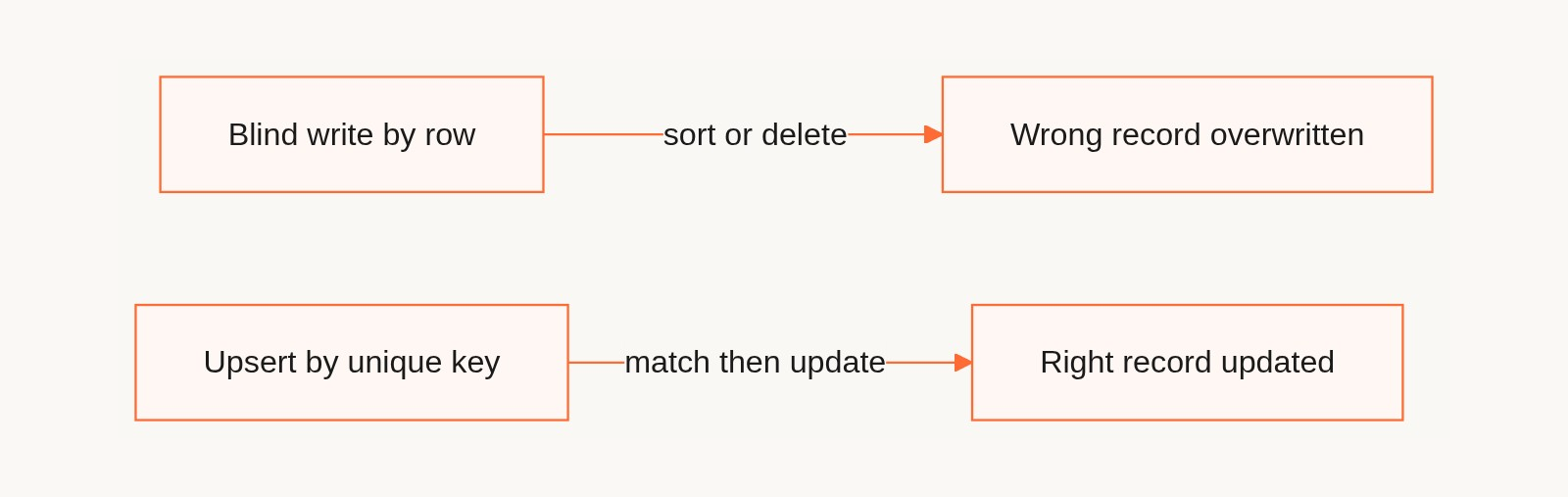
- Match records with a unique identifier, like a customer ID or email address, and update that row specifically instead of overwriting by position.
- Test any new automation against a copy of your data first, and keep a locked master on hand for recovery if it misfires.
- When you’re scripting or connecting tools, favor match-then-update logic over blind writes, and log every change so you can trace what happened.
The habit that actually sticks
The mistake we see most often isn’t a lack of knowledge, it’s misplaced trust. People assume AutoSave is a safety net when it’s a sync engine, they let automations run without a match key, and they keep several “final” versions floating around in different inboxes.
Here’s the checklist worth pinning above your desk: save a copy before editing, protect the ranges that matter, and keep the master in the cloud with version history turned on. Pick one of these rules, apply it with your team this week, and the rest tend to follow once the habit is in place.
An alternative: turn your spreadsheet workflow into a controlled app
If your team keeps hitting the same overwrite problem no matter how many protections you add, that’s usually a sign the spreadsheet has outgrown its format, not that you’re doing something wrong. We built Gainable around that exact moment: you keep your spreadsheet, and Gaia turns it into an application with a controlled interface instead of a file people pass around.
Gaia reads your Excel file, your Google Sheet, or both, and builds a working app with sign-in, dashboards, and real-time updates. People edit records through forms and views, not raw cells, so nobody pastes over a formula or a dropdown. Sync with Google Sheets runs both ways, so the people who still prefer the sheet can keep using it. And sync works the way the section above recommends: every row is matched on a stable primary key, and when you push data into a dataset, Gainable refuses a sync whose keys barely overlap what is already stored, which is exactly the blind overwrite this post is about. Comments and files sit on the record they refer to, so your team stops emailing files and starts working from one place.
Plans are priced per builder with unlimited app users, billed annually: $99 per month on Solo, $499 on Team, and from $4,999 on Enterprise, which adds IT governance and audit logs. See the pricing page, or take a look at the App Builder to see what replacing the handoff looks like for your own data.
FAQ
How do you disable editing in Excel?
Go to Review > Protect Sheet and leave all the “Allow” boxes unchecked to block edits across the whole sheet, or unlock only the specific cells you want people to edit beforehand. Worksheet protection can also require a password if you want control over who removes it later.
How do I copy and paste in Excel and keep the drop-down list?
Use Paste Special and choose Values Only when pasting into cells near a validated dropdown, since a regular paste can overwrite the validation rule entirely. Protecting the sheet after setting up validation adds a second layer that stops accidental pastes from breaking the list.
How do I protect certain cells in a spreadsheet?
Select the cells you want to stay editable and uncheck “Locked” under Format Cells, then protect the rest of the sheet through Review > Protect Sheet. Everything left checked as “Locked” becomes uneditable once protection is turned on, while your selected cells stay open for input.
How do I stop Excel from changing data format?
Data Validation rules combined with worksheet protection are the most reliable way to keep a cell’s expected format intact, since protection blocks the kind of paste or overwrite that strips formatting. Formatting a column as text or a specific number type before data entry also reduces unexpected auto-conversion.
Sources
- Save a copy before editing to prevent changing the original file | Microsoft Support
- Maximizing Microsoft 365 storage: managing version history | Harvard University IT