

TL;DR:
- Converting an Excel sheet into an app creates a live, interactive interface that replaces file sharing.
- Proper data preparation, including formatting as tables and removing duplicates, ensures a smooth conversion process.
- Gainable reads your columns and builds a functional app without requiring coding skills, supporting real-time sync and controls.
Excel-to-app conversion is the process of turning a structured spreadsheet into a working, interactive application that your team can use without downloading a file or sending it around by email. You can convert your Excel sheet into an app today without writing a single line of code. Modern no-code platforms read your columns, map your data relationships, and generate a real interface in minutes. This guide covers everything you need: how to prepare your spreadsheet, which platform features matter, how to execute the build, and how to keep the app running well after launch.
What does it mean to convert my Excel sheet into an app?
Converting a spreadsheet into an app means replacing the file-sharing loop with a live interface. Instead of emailing a workbook and waiting for someone to paste data back, your team opens a browser or mobile screen and works directly in the application. The spreadsheet still exists. The app just sits on top of it, reading and writing data in real time.

No-code platforms make this process accessible to business users without any developer involvement. The industry term for this category is “low-code/no-code development,” often abbreviated as LCNC. You will hear both terms used interchangeably, but the core idea is the same: your columns become the spec, and the platform builds around them.
The output can be a web app, a mobile app, or an internal workflow tool. A sales team might get a pipeline tracker. An operations manager might get an inventory dashboard with live counts. The data source is your Excel file. The result is a real product.
How should you prepare your Excel data before converting it?
Data preparation is the single most decisive factor between a smooth app and a glitch-prone one. Cleaning your data before you import it prevents the majority of errors that teams encounter after launch. Skipping this step creates technical debt that compounds every time someone adds a new record.
Here is what your spreadsheet needs before you point any platform at it:
- Format data as tables. Power Apps requires Excel data formatted as tables to read and convert it efficiently. Most no-code platforms share this requirement. Use Excel’s built-in “Format as Table” feature on every sheet you plan to import.
- Remove duplicates. Duplicate rows create conflicting records in your app. Run Excel’s “Remove Duplicates” function on every key column before importing.
- Define clear keys. Every table needs a unique identifier column, such as a customer ID, order number, or email address. This is what links related tables together inside the app.
- Eliminate merged cells. Merged cells break relational architecture. Successful Excel-to-app conversion requires clean tables with no merged cells and minimal decorative formatting.
- Store the file in the cloud. Many platforms connect to Excel files stored in OneDrive, Google Drive, or Dropbox. Cloud storage enables a live data connection so your app stays current without manual re-imports.
Pro Tip: Before importing, create a separate “clean” copy of your spreadsheet. Keep the original untouched. This gives you a rollback point if the import reveals unexpected data issues.
Poor data structure does not just slow down your app. It causes fields to map incorrectly, filters to return wrong results, and dashboards to show misleading totals. Thirty minutes of cleanup before import saves hours of debugging after.
Which platform features matter most for Excel spreadsheet app conversion?
No-code platforms commonly offer drag-and-drop UI builders, automation workflows, and template-driven app creation. These three features cover the majority of what business teams need. The right platform for your team depends on how complex your data is and how much control you want over the final interface.
When evaluating any platform for Excel spreadsheet app conversion, look for these capabilities:
- Direct Excel import or cloud file linking. The platform should read your file without requiring you to reformat data into a proprietary system first.
- Two-way data sync. Changes made in the app should write back to the source. One-way sync creates a second version of the truth.
- Role-based access controls. Your team needs different permissions. A warehouse picker should not see finance data.
- Automation and workflow triggers. Alerts, approvals, and status changes should happen automatically based on data conditions.
- Mobile and web output. The app should work on a phone and a desktop without a separate build process.
| Feature category | What to look for |
|---|---|
| Data import | Direct Excel upload or cloud file link |
| Interface builder | Drag-and-drop with field binding |
| Automation | Trigger-based workflows and notifications |
| Access control | Role-based permissions per user or group |
| Sync direction | Two-way, not read-only |
| Output type | Web app, mobile app, or both |
Pro Tip: Ask any platform vendor whether their sync is real-time or scheduled. Scheduled syncs that run every few hours create data blackouts where your team is working from stale information.
Gainable takes a different approach from most entry-level no-code tools. You point it at your Excel file, and it reads your columns and builds a working app from what is already there. No prompts, no templates to configure. Your data structure is the spec.
Step-by-step process to build an app from your Excel data
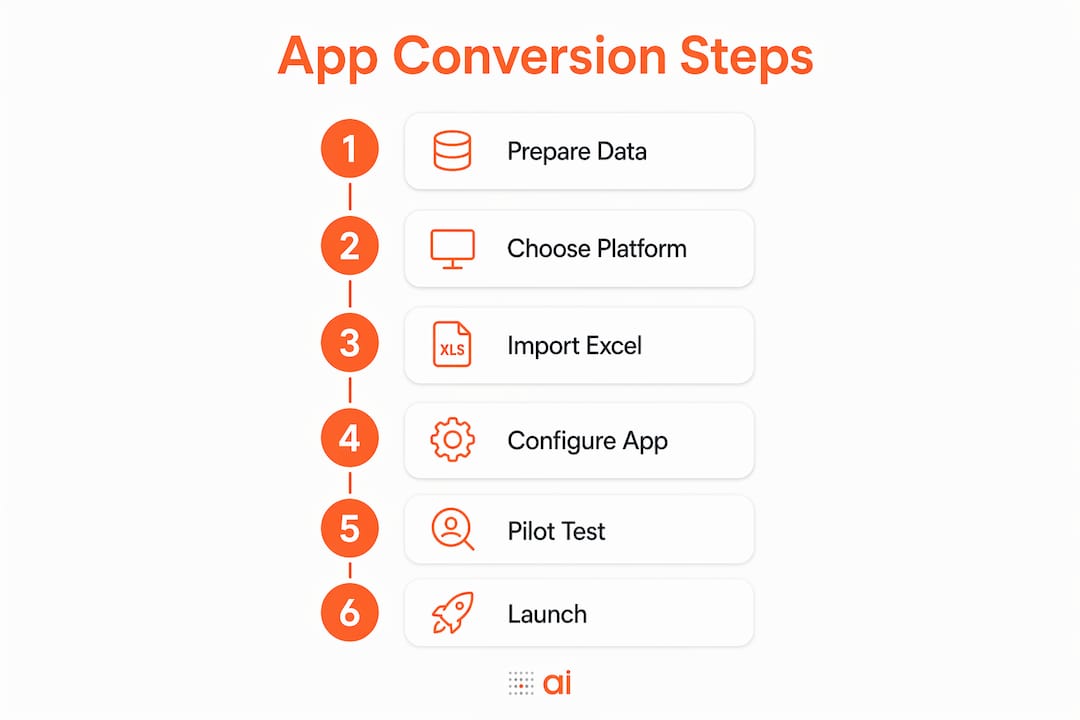
The build process follows five stages regardless of which platform you use. Rushing any stage creates problems that are harder to fix after deployment.
-
Upload or link your Excel file. Uploading your cleaned Excel file is the first key step in any no-code platform. If the platform supports cloud file linking, use that instead of a static upload. A linked file updates the app automatically when the spreadsheet changes.
-
Map your data to the app structure. The platform reads your columns and asks you to confirm field types: text, number, date, dropdown, and so on. Correct field types here. A column stored as text cannot be filtered numerically later.
-
Design the interface. Use the drag-and-drop editor to build your screens. Start with the views your team uses most: a list view, a detail view, and a form for adding or editing records. Avoid building every possible screen on day one. Ship the core, then add.
-
Add automation and logic. Set up workflow triggers for the actions your team repeats manually. Common examples include sending a notification when a status changes, flagging a record when a value exceeds a threshold, or routing an approval request to a manager.
-
Test before you deploy. Testing the app iteratively during development catches errors before they reach your team. Test with real data, not sample rows. Real data exposes edge cases that clean demo data hides.
-
Deploy and share. Send your team a link or invite them by email. Set permissions before anyone logs in. Fixing access issues after launch is disruptive and erodes trust in the new tool.
Pro Tip: Run a 48-hour pilot with two or three users before rolling out to the full team. Their feedback will surface usability issues that you cannot see as the builder.
Common errors at this stage include broken field mappings after a spreadsheet column is renamed, automation triggers that fire on every record instead of only new ones, and mobile layouts that look correct on desktop but break on smaller screens. Test on the actual devices your team uses.
How do you maintain and scale your Excel-based app over time?
An app built from a spreadsheet is a starting point, not a finished product. The teams that get the most value from Excel-to-app conversion treat the first version as a prototype and improve it based on real use.
- Sync your spreadsheet regularly. If your platform uses scheduled sync rather than real-time connection, set a sync frequency that matches how often your data changes. A daily sync works for monthly reports. It fails for live inventory.
- Monitor performance as data grows. Excel becomes inefficient for large datasets with tens of thousands of rows. When your app starts loading slowly or filters take more than two seconds to return results, that is the signal to migrate to a dedicated backend database. This is not a failure. It means your app succeeded and your data grew.
- Implement access controls from day one. Do not wait until a data incident to add permissions. Define who can view, edit, and delete records before launch and review those settings quarterly.
- Collect user feedback in the first 30 days. The people using the app daily will find friction points you never anticipated. A simple feedback form inside the app captures these before they become reasons to abandon it.
- Plan for migration. Migrating to a dedicated backend database is the natural next step for apps that outgrow Excel’s capacity. Platforms like Gainable include a built-in database so you can migrate without switching tools or rebuilding the interface.
The teams that struggle with Excel-based apps are usually the ones who treated the launch as the finish line. The teams that succeed treat it as the starting line.
Key Takeaways
Converting an Excel sheet into a working app requires clean data, the right platform features, and a disciplined build process.
| Point | Details |
|---|---|
| Data preparation is non-negotiable | Format data as tables, remove duplicates, and define unique key columns before importing. |
| Cloud storage enables live sync | Store your Excel file in OneDrive, Google Drive, or Dropbox to keep the app current automatically. |
| Two-way sync prevents data blackouts | Choose a platform that writes changes back to the source, not just reads from it. |
| Test with real data, not samples | Real data exposes edge cases that clean demo rows never reveal before deployment. |
| Scale beyond Excel when needed | Migrate to a dedicated database when app performance degrades as your dataset grows. |
What I have learned from watching teams make this switch
The biggest mistake I see is teams spending weeks choosing a platform and two hours preparing their data. It should be the other way around. The platform decision matters far less than the quality of the spreadsheet you bring to it. A well-structured Excel file will produce a working app on almost any no-code tool. A messy one will produce a broken app on the best platform available.
The second thing I have noticed is that user adoption is the real project. The technical conversion takes hours. Getting your team to stop emailing the old spreadsheet and start using the app takes weeks. The teams that succeed treat adoption as a communication problem, not a training problem. They explain why the app exists, not just how to use it.
One more thing: do not try to replicate every feature of your spreadsheet in the app. Spreadsheets accumulate years of workarounds, hidden columns, and color-coded logic that nobody fully understands anymore. The conversion is a chance to rebuild the process cleanly. Take it. Your team will thank you for the simpler interface, even if they resist it at first.
The no-code app builders available in 2026 have made this genuinely accessible for business teams without any technical background. The barrier is not the technology anymore. It is the willingness to clean up the data and commit to the new workflow.
— Rickard
Gainable turns your spreadsheet into a working app today
Gainable is built specifically for teams who want to stop managing data through file attachments and start working in a live application. You point it at your Excel file, and it reads your columns, maps your data model, and generates a working app from what is already there.
The app ships with authentication, audit logs, dashboards, and real-time updates. Gaia Autopilot monitors your data for anomalies and drafts actions for you to approve, so recurring work clears itself before it piles up. Your team gets collaboration tools built into every record: chat, comments, and file sharing that stay next to the data they refer to. If you are ready to turn your spreadsheet into a real application, start with Gainable’s Excel-to-app platform and have a working app running today.
FAQ
What does it mean to convert an Excel sheet into an app?
It means replacing a shared file with a live, interactive application that reads and writes to your spreadsheet data. Your team works in the app instead of opening and emailing the Excel file.
Do I need coding skills to create an app from Excel?
No. No-code platforms make app creation accessible to business users without any programming knowledge. You configure the interface and logic through visual editors.
How should I format my Excel file before converting it to an app?
Format every data range as an Excel table, remove duplicate rows, define a unique ID column for each table, and eliminate merged cells. Platforms like Power Apps require this table format to read and convert data correctly.
What happens when my Excel data gets too large for the app?
Excel becomes inefficient at tens of thousands of cross-linked rows. At that point, migrating to a dedicated backend database improves performance and keeps the app responsive.
Can the app write data back to my original Excel file?
Yes, if the platform supports two-way sync. Look for platforms that write changes back to the source file rather than only reading from it. One-way sync creates a second version of your data that quickly falls out of date.