
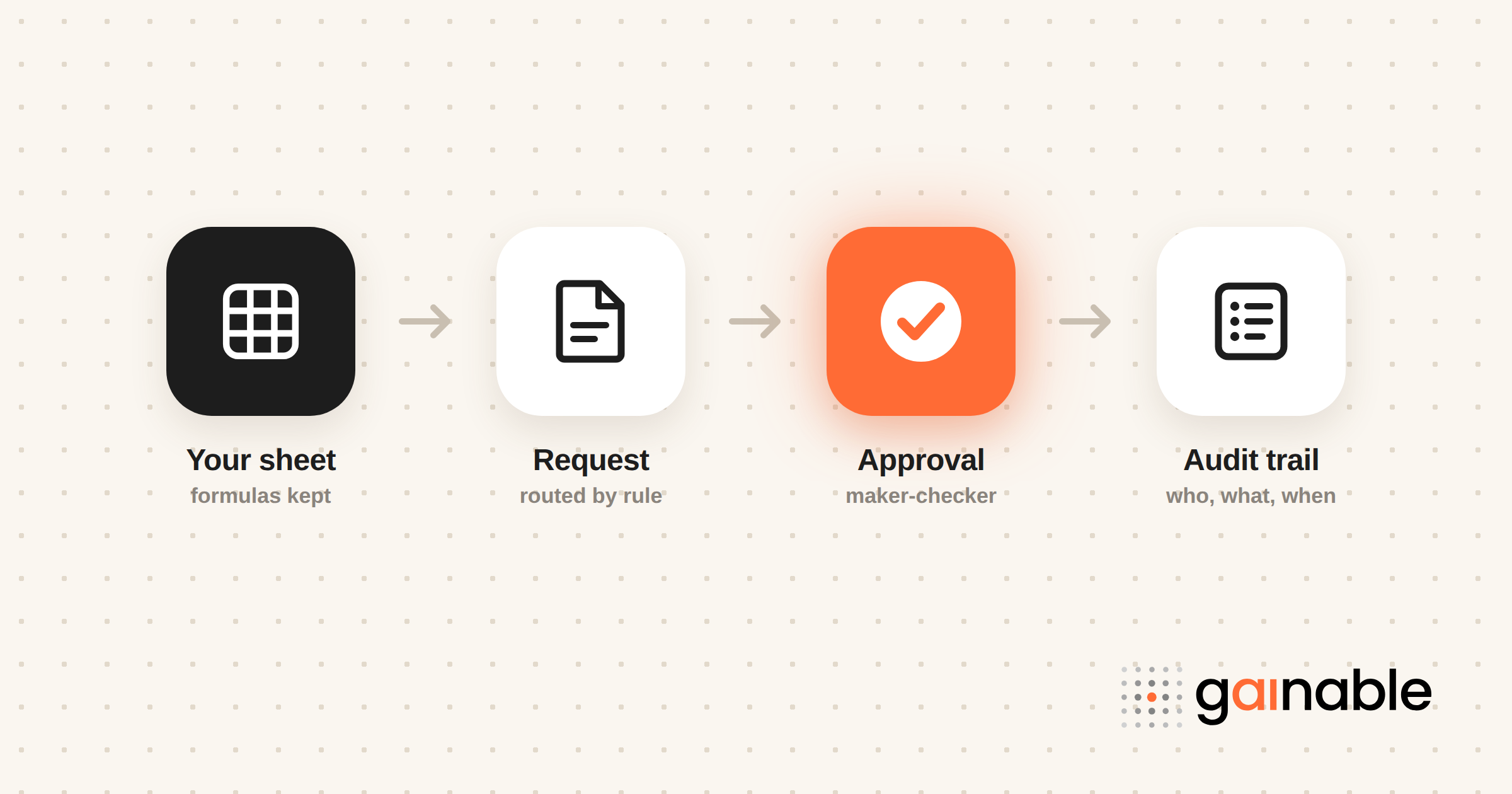
The spreadsheet can keep its logic without being your system of record. The practical fix is an automation layer, a Power Automate flow, an Apps Script trigger, SharePoint’s modern approvals, or a no-code app, that keeps your existing sheet logic intact while adding routing, audit logs, and notifications. Map your fields first, then pick one approach and prototype it this week.
TL;DR:
- Power Automate with Forms and Excel offers the fastest prototyping for Microsoft 365 teams, with relatively low setup and no extra cost on suitable licenses.
- Apps Script provides detailed control in Google Workspace but requires ongoing maintenance and scripting skills, which can add long-term costs.
- SharePoint approvals are quick to activate for existing lists and libraries, but can auto-cancel if the item is modified during pending approval, potentially disrupting workflows.
- Automating around spreadsheets preserves formulas but doesn’t scale well beyond a few hundred approvals or across multiple departments due to performance and management limitations.
- Turning the existing spreadsheet into an app with two-way sync, sign-in, and a status field gives you a governed approval process without rebuilding the logic from scratch.
Table of Contents
- Comparing your options for automating approvals
- Build an automated approval with Microsoft Forms, Excel, and Power Automate
- Google Sheets and Apps Script: trigger patterns for Workspace teams
- SharePoint’s built-in approvals: what they offer and where they stop
- Migration checklist: mapping, maker-checker, and audit trail
- Testing your workflow before it goes live
- Why spreadsheets struggle as approval systems
- Keeping spreadsheet approvals secure
- Common problems when connecting spreadsheets to approval tools
- When a spreadsheet can’t keep up
- Spreadsheets versus dedicated workflow software
- What building these systems has taught us
- A way to keep your spreadsheet logic and add real governance
- FAQ
- Sources
- Recommended
Comparing your options for automating approvals
Before you build anything, figure out which path fits the tools your team already trusts. Each approach trades speed for control differently, and picking the wrong one means rework later.
- Power Automate with Forms and Excel: fastest to prototype in Microsoft 365 shops, decent governance through flow run history, requires only light configuration skills, and costs nothing extra if you already hold the right license tier.
- Google Apps Script: strong for Google Workspace teams who want scriptable control over routing logic, but it demands someone comfortable writing JavaScript and maintaining triggers over time.
- Native SharePoint approvals: quick to turn on for lists and libraries you already manage, with minimal setup, though it leans on SharePoint permissions that can create gaps if your list sharing isn’t locked down.
- Low-code app platforms: best when you need a real interface instead of a flow buried in a settings menu, with a steeper initial setup but far less long-term patchwork.
Each option carries its own risk. Flows and scripts can silently fail if a trigger misfires, SharePoint approvals auto-cancel when the underlying item changes, and any option that depends on file-level permissions inherits whatever gaps already exist in your spreadsheet sharing.
Build an automated approval with Microsoft Forms, Excel, and Power Automate
This is the most common starting point for teams already living in Microsoft 365, and it mirrors the structure most approval processes already follow: collect, store, route, decide, log.
- Create the intake form in Microsoft Forms and store responses in an Excel table saved to OneDrive or SharePoint, not a local file.
- Build a new flow in Power Automate using the “When a new response is submitted” trigger from Forms, following the setup Microsoft’s support documentation walks through step by step.
- Add “Get response details” to pull the submitted answers into the flow.
- Insert a Condition control to route requests by field value, for example, amount, department, or request type, branching the flow so different approvers or thresholds trigger different paths.
- Add the approval action, choosing whether you need one approver or all approvers to sign off, and capture the approver’s authenticated identity automatically through the action’s output.
- Add a row into a table to append the Excel sheet you already built, writing the decision, timestamp, and approver back into your data.
- Test the flow end to end, submitting a sample request and confirming the row lands correctly and notifications fire.
Keep your audit trail separate from the working sheet. An append-only tab, or better, a locked table only the flow can write to, gives you a record that survives someone editing the “live” version.
Pro Tip: Run your first version with a single approval step and basic notifications before adding conditional routing, it is much easier to debug one moving part at a time.
Google Sheets and Apps Script: trigger patterns for Workspace teams
If your organization runs on Google Workspace, you can get similar results without leaving Sheets. Link a Google Form to a response sheet, or add an “Approved?” checkbox column directly to an existing sheet your team already updates.
- Set up an installable trigger (onEdit or onChange) so a script runs automatically whenever someone checks the approval box, following the pattern Google Cloud’s tutorial outlines for triggering workflows from Sheets.
- Write a handleEdit function that detects the approval checkbox change and calls an external workflow or API, rather than just updating another cell.
- Record the decision outside the sheet whenever possible: Apps Script triggers run under the executing user’s permissions, so a co-author with edit access can alter history unless you’re logging to an external, authenticated system.
- Weigh the trade-off honestly: Apps Script gives you tight control over logic, but someone has to maintain that script as rules change, which is a real ongoing cost compared to a managed flow.
SharePoint’s built-in approvals: what they offer and where they stop
If you’re already managing content in SharePoint lists or document libraries, modern approvals are worth checking before you build anything custom. You enable them under Integrate > Approvals on the list or library, then create approval requests directly from an item.
- Status pill and approval details give requesters a visible, real-time view of where their item sits in the process.
- Require responses from all approvers is a built-in toggle, so you don’t need custom logic for basic “everyone must sign off” rules, as Microsoft’s documentation explains.
- Approval history is viewable per item, useful for quick checks even if it isn’t a full audit system.
- Auto-cancel on edits is the catch: if someone changes the underlying item while it’s pending, the approval request cancels automatically, which can quietly reset a process no one notices until it stalls.
Classic SharePoint workflows are no longer an option. Microsoft retired SharePoint 2013 workflows from all tenants on April 2, 2026, and points teams to Power Automate or the modern Approvals feature instead. If an old approval process still references one, it has already stopped running.
Migration checklist: mapping, maker-checker, and audit trail
Before you flip the switch on any new flow, walk through a short checklist. Skipping this step is where most spreadsheet-to-automation projects run into trouble later.
- Inventory every field in your current spreadsheet and map each one to a destination field and data type in your new system, don’t assume a text column will translate cleanly into a date or number field.
- Establish maker-checker separation: the person submitting a request should never be the same person approving it, and materiality thresholds (like requests over a set dollar amount) should automatically escalate to a second reviewer rather than relying on someone remembering to forward it.
- Build an immutable audit log, either an external table your flow writes to or your platform’s native audit feature, capturing timestamps and the approver’s authenticated identity, not just a typed name in a cell.
- Archive the historical tabs from your old spreadsheet and document a rollback plan in case the new flow needs adjustment after launch.
Spreadsheet protections and file-level permissions are not a substitute for a real audit log. Co-authoring and workbook locks can be overridden by whoever controls sharing settings on OneDrive or SharePoint, so the safest pattern is capturing the approval event outside the sheet the moment it happens.
Pro Tip: Keep the spreadsheet as the intake form your team already knows, but let the flow seal every decision into a locked table nobody can edit after the fact.
Testing your workflow before it goes live
Define a realistic SLA, how long a request should sit before it needs a reminder or escalation, and build those rules into the flow rather than hoping someone checks manually.
Test the edge cases that actually break processes: conditional routing with multiple branches, reassigning an approver who’s out of office, two people editing the same request at once, and a batch of approvals submitted together. Each of these behaves differently than a single clean test run.
Once live, check your flow’s run history regularly, set up error alerts so a failed step doesn’t go unnoticed, and write a short runbook so approvers know what to do when something stalls.
Why spreadsheets struggle as approval systems
Spreadsheets are great at holding data. They’re much weaker at managing a process that depends on timing, visibility, and proof.
The first gap is notifications. A spreadsheet doesn’t tell anyone a request is waiting, someone has to open the file and check, which means approvals sit for days simply because nobody looked. The second is escalation. Spreadsheets have no concept of “this has been pending too long, send it to someone else.” That logic has to live in a person’s head, and people forget, go on vacation, or change roles.
The third, and most serious, is the audit trail. A cell that says “Approved” tells you nothing about who typed it, when, or whether it was changed afterward. Manual processes compensate with timestamped tabs or by locking a sheet after decisions are made, but these are workarounds, not real controls. Auditors expect version history, clear ownership, and separation between the person requesting and the person approving. A spreadsheet, even a well-organized one, rarely gives you that without a second system layered on top.
Keeping spreadsheet approvals secure
Spreadsheet-based approvals often carry more data exposure than teams realize. A single shared file can hold salary bands, vendor pricing, or customer details, and once it’s shared broadly for approval purposes, access control gets messy fast.
A few practices matter most. First, limit edit access strictly to people who need it, and make everyone else a viewer, since co-authoring permissions are frequently broader than necessary for a process that only requires one or two people to actually change anything. Second, don’t rely on sheet protection or hidden tabs as a security boundary. They’re easy to bypass and don’t log who accessed what. Third, treat the spreadsheet as a temporary front end where possible, and route the actual decision event to a backend system with real access logs. Our guide to making data governance work in spreadsheets covers how to assign owners and pilot that on one domain first. Finally, review sharing settings periodically, because OneDrive and Google Drive links often outlive the project they were created for, leaving former collaborators with access no one remembers granting.
Common problems when connecting spreadsheets to approval tools
Most integration headaches come from a handful of repeat offenders. Column headers that change slightly, a space added, a rename, a reordered field, break field mapping in a flow that was working fine the week before. The fix is locking your table structure before you connect anything, and treating header changes as a deliberate step, not something that happens casually.
Trigger misfires are another common issue. A flow set to fire “when a new response is submitted” won’t fire if someone pastes rows in manually instead of using the form, since the trigger is tied to the form submission event, not the sheet edit itself. If your team edits the sheet directly, you need an edit-based trigger instead, with Apps Script or a flow configured accordingly.
Permission mismatches cause quieter failures. A flow or script often runs under a specific account’s authority, and if that account loses access to the file, the automation fails silently until someone notices approvals have stopped moving. Checking your flow’s run history regularly catches this before it becomes a backlog.
When a spreadsheet can’t keep up
A spreadsheet that works fine for twenty approvals a month can fall apart at two hundred. Rows get harder to scan, conditional formatting slows the file down, and multiple people editing simultaneously increases the odds of an accidental overwrite.
Performance isn’t the only concern. As request volume grows, so does the chance that two people approve the same item independently, or that a stale filter hides a pending request from view entirely. Spreadsheets also don’t scale well across departments: a sheet built for one team’s approval logic rarely transfers cleanly when a second team wants to use it, because the formulas and structure were never designed to be reused.
This is usually the point where automating the process, rather than just the notifications, starts paying off. A flow or an app doesn’t slow down as volume grows the way a sheet with thousands of rows and nested formulas does.
Spreadsheets versus dedicated workflow software
A spreadsheet costs nothing extra to start and gives you total flexibility over layout and formulas, which is exactly why so many approval processes begin there. But that flexibility is also the weakness: nothing stops someone from editing a cell they shouldn’t, and there’s no built-in record of who did what.
Dedicated workflow software trades some of that flexibility for structure. Permissions are enforced by the system, not by trust. Every action is logged automatically. Notifications and escalations run on rules instead of memory. The trade-off is usually cost and a learning curve, plus the risk of losing the specific logic your spreadsheet already encodes if the new tool forces you into a rigid template.
The practical middle ground many teams land on is automating around the spreadsheet rather than replacing it outright, preserving the business rules already built into your formulas while adding the governance a dedicated system would normally provide.
What building these systems has taught us
The biggest mistake we see is teams rebuilding their entire approval logic from scratch instead of automating what already works. Start with notifications and a single approval step, prove it, then layer in routing and escalation once the basics hold. A flow is usually the right first move; a full app makes sense once the process touches multiple teams or needs a real interface. Preserve your spreadsheet’s logic, just stop trusting it as your audit trail.
A way to keep your spreadsheet logic and add real governance
If you’d rather not rebuild your approval logic inside a flow or a script, there’s another route. Gainable turns your existing Excel or Google Sheets file into a working app, using the columns and rules you already have as the structure instead of a blank screen. An approval process maps to a familiar shape: requests with a status that moves from submitted to under review to approved or rejected, a submitted-by and a reviewed-by user, and a dashboard of what’s pending.

- Two-way sync with Google Sheets writes decisions back to the original spreadsheet, so the people who prefer editing a sheet still can, and the formulas that depend on those columns keep working.
- Authentication and per-app access mean the reviewed-by field holds a signed-in user, not a typed name in a cell. Unlimited app users means you don’t ration seats among approvers.
- Comments and files sit on the request they refer to, so approval discussions don’t live in a separate email thread.
- Gaia Autopilot can chase stalled requests on a schedule. Its outbound steps default to draft-and-approve, and every trigger, draft, and decision lands in an action log. We go deeper on that pattern in governed workflow automation.
This fits teams who’ve outgrown Power Automate’s flow limits or Apps Script’s maintenance burden but don’t want to lose the logic already baked into their spreadsheet. Pricing is per builder seat, not per user: Solo starts at $99 per month billed annually, Team adds shared workspaces and admin permissions, and Enterprise adds IT governance and audit logs. Check our pricing to see which fits your team, or explore the app builder to see how the conversion works.
FAQ
How do I create an approval workflow?
Start by mapping the fields your current process already uses, then choose a trigger (a form submission or a sheet edit) and connect it to an approval action in a tool like Power Automate, Apps Script, or SharePoint. Add routing conditions for different request types, then log every decision to an audit trail separate from the working file.
Does Microsoft Forms have a built-in approval workflow?
Microsoft Forms doesn’t include approvals on its own, but it connects directly to Power Automate, which adds the approval action, routing conditions, and notifications. Microsoft’s guide to creating an automated workflow for Forms walks through setting this up with Condition controls.
What are the typical steps in a workflow?
A typical approval workflow follows five stages: request submission, routing to the right approver, review and decision, notification of the outcome, and logging the result for audit purposes. Automating any one of these stages, starting with notifications, tends to deliver the fastest improvement.
Does SharePoint include approval workflows?
Yes, SharePoint offers modern approvals built into lists and document libraries, enabled through Integrate > Approvals. Classic SharePoint 2013 workflows were retired in April 2026, so Power Automate covers anything more complex. Modern approvals include a status pill, approval history, and a toggle requiring all approvers to respond, though approvals auto-cancel if the item changes while pending, as Microsoft’s documentation notes.
Can a spreadsheet-based approval process scale without replacing the spreadsheet entirely?
Yes, many teams keep the spreadsheet as the intake form while adding an automation layer, a flow, a script, or a connected app, that handles routing, notifications, and audit logging on top of it. This preserves existing formulas and business rules while fixing the gaps that cause spreadsheets to break down at higher volume.
Sources
- Setting up an automated workflow between Microsoft Forms and Excel through Power Automate | Microsoft Support
- Create an automated workflow for Microsoft Forms | Microsoft Support
- Approvals in Lists & document libraries | Microsoft Support
- Trigger workflows from Sheets | Google Cloud Workflows docs