
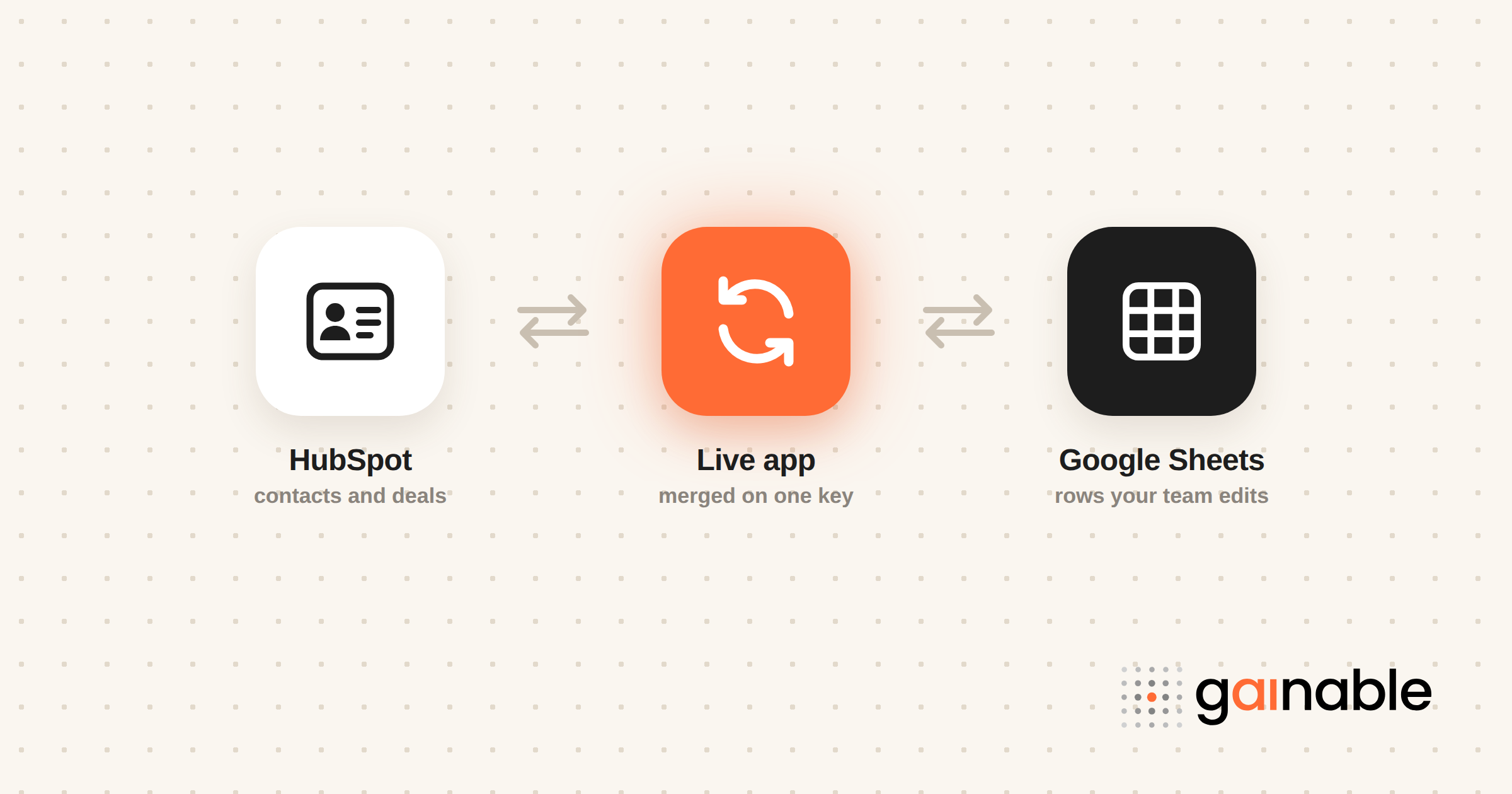
Use the HubSpot Assistant for Google Sheets add-on when you need quick imports and in-sheet lookups. Use HubSpot workflows when you need HubSpot to push data into a sheet automatically as things happen. Reach for an app-based two-way sync like Gainable when you need write-back in both directions, several people editing at once, and a shared record of who changed what. Each option trades simplicity for control, so the right one depends on how much governance your data needs.
TL;DR:
- HubSpot’s AI contact sync works best with standardized headers and a small test import to avoid mapping errors.
- Manual import via the add-on needs a clean sheet: one header row, no stray data, and no merged cells.
- Workflows suit automatic one-way pushes like form logs or deal updates, but they don’t do real-time, bidirectional sync.
- For teams that need live multi-user editing, Gainable merges HubSpot and Sheets on one key and writes changes back to both, starting at $99 per month.
- Reliable syncing depends on a unique identifier, separating automated sheets from formula-driven sheets, and scheduled re-authentication checks.
Table of Contents
- How Do You Set Up HubSpot Google Sheets Sync?
- How Do You Map Sheet Columns to HubSpot Properties?
- How Do You Push HubSpot Data Into Google Sheets Automatically?
- When Should You Use Two-Way Sync Instead of One-Way Push?
- What Are the Most Common Sync Errors and How Do You Fix Them?
- What Templates Work Best for HubSpot-to-Sheets Syncing?
- Three Rules That Keep a HubSpot Sync From Breaking
- How Gainable Handles HubSpot Sync Without the Fragility
- Sources
- FAQ
How Do You Set Up HubSpot Google Sheets Sync?
Getting HubSpot for Google Sheets running takes about five minutes, but a couple of missteps here cause most of the “why won’t this connect” headaches people run into later.
Here’s the sequence that avoids the usual snags:
- Open the Google Workspace Marketplace and search for the HubSpot Assistant for Google Sheets extension, then click install.
- In your spreadsheet, go to Extensions → HubSpot for Google Sheets → Launch.
- Sign in with your HubSpot account first, then confirm the Google account that owns (or has edit access to) the sheet.
- Grant the permissions it asks for. Skipping one of these prompts is the number one reason the sidebar loads blank on the next launch.
- Before importing anything, clean up the sheet itself: one header row, no merged cells, and no stray blank rows sitting above your data.
That last step matters more than people expect. HubSpot’s own setup documentation walks through the connect and import flow in detail, and nearly every mapping error traces back to a messy header row rather than a HubSpot problem.
Pro Tip: Keep a “clean” version of your import sheet separate from your working sheet. Copy data over right before you sync, so a stray formula or extra column never sneaks into HubSpot.
How Do You Map Sheet Columns to HubSpot Properties?
Once you’re connected, the add-on gives you two paths: Import manually, where you pick a range and map each column yourself, or AI contact sync, where HubSpot guesses the property mapping from your header names. AI mapping is useful for a first pass on a large sheet, but treat its suggestions as a draft, not a final answer.
Before you commit to a full import, work through this checklist:
- Confirm every required HubSpot property (usually email for contacts) has a mapped column with no blanks.
- Review each AI-suggested mapping individually. It will sometimes match “Company” to Company Name when you meant Company Domain, and that kind of mismatch is easy to miss at a glance.
- Run a test import on ten or twenty rows before pushing the full sheet, so a mapping mistake costs you minutes, not hours of cleanup.
- Standardize your header names across every import sheet you use. “Email”, “Email Address”, and “E-mail” will each need remapping every single time otherwise.
- Keep a backup copy of the sheet before import, since a bad mapping run is far easier to fix by reverting than by untangling records inside HubSpot.
Small habits like these are what separate a five minute import from an afternoon of data cleanup.
How Do You Push HubSpot Data Into Google Sheets Automatically?
Workflows solve a different problem: getting data out of HubSpot and into a sheet without touching the add-on at all. This is the direction most people mean when they say they want to “automate HubSpot reports.”
Here’s how it works:
- Go to Automation → Workflows, open the workflow you want, click the plus icon, and choose a Google Sheets action.
- Create Google Sheet row appends a brand-new row every time the workflow fires. This is ideal for logging events, like every new form submission or every deal that moves into “Closed Won.”
- Update existing Google Sheet rows instead edits a row that already exists, but it requires a lookup column and a value HubSpot can match against, like a contact’s email.
- If more than one row matches that lookup value, HubSpot updates only the first one it finds, according to the workflow documentation. Duplicate emails or reused deal IDs in your sheet will quietly cause the wrong row to update.
A common setup: one workflow that logs every new form submission as a fresh row, and a second workflow that updates a deal-tracking row whenever the deal stage changes.
When Should You Use Two-Way Sync Instead of One-Way Push?
The add-on and workflows solve different halves of the same problem, and mixing them up is where most setups break down.
The add-on is a lookup and import tool: it pulls HubSpot data into your sidebar and pushes sheet rows into HubSpot on request. Workflows only go one direction, from HubSpot out to Sheets, and they fire automatically based on triggers you set. Neither one keeps a sheet and a HubSpot record continuously synced in both directions at once.
Run through this before you commit to either:
- How often does the data need to update? Event logging is fine for workflows; live visibility across a team is not.
- How many people need to edit the sheet and have those edits reflect back in HubSpot?
- Do you have a unique identifier (not just a name) to key every lookup on?
- Do you need a trail of who changed what, and when?
- How often are you willing to re-authenticate the connection when Google or HubSpot revokes access?
Pro Tip: If your answers lean toward “constantly” and “several people,” you’ve outgrown a one-way push. That’s usually the point where teams move to an app-layer sync, or to governed workflow automation on top of the sheet, instead of stacking more workflows.
What Are the Most Common Sync Errors and How Do You Fix Them?
Most sync failures trace back to one of a handful of well-documented limits, not a mysterious bug.
By the Numbers: HubSpot’s Create Google Sheet row action can add up to 20 cells of data per row. Map more properties than that in one action and the extras won’t land, so split rich records like contacts with many custom fields across two actions.
Work through these when something goes wrong:
- Row updating the wrong record? Check for duplicate values in your lookup column. Only the first match gets updated, so a repeated email or deal ID sends changes to the wrong row.
- Sidebar or script suddenly stops working? Google occasionally blocks Apps Script execution over permission scopes, per this Google Docs support thread. Reconnecting the integration or narrowing script permissions often resolves it.
- Import fails silently? Confirm the HubSpot user connected to the sheet still has active access. A deactivated or downgraded user account is a frequent, invisible cause.
- Sheet not updating at all? Check sharing settings first. If the connected account lost edit access to the sheet, the workflow fails without much of a visible error.
What Templates Work Best for HubSpot-to-Sheets Syncing?
Three setups cover most of what small teams need, and each one maps cleanly onto the tools above.
- Contacts import. Headers: First Name, Last Name, Email, Company, Lifecycle Stage. Keep Email as your unique key, run the AI mapping once, then manually confirm Lifecycle Stage since it’s the field most often mismatched.
- Form submissions log. A dedicated sheet with Timestamp, Name, Email, Source Form, and Lead Score, fed by a Create Google Sheet row action so every submission appends as a new line for reporting.
- Deal pipeline export. Columns for Deal Name, Stage, Amount, Close Date, and Owner, updated through an Update existing Google Sheet rows action keyed on a unique Deal ID rather than deal name.
If you’re building the contacts template from scratch, this Google Sheets CRM template walks through exact formulas and header structures worth copying before your first import.
These templates work well until the sheet becomes the system of record for something that changes constantly, like a live pipeline several reps update daily. That’s where a one-way push starts to feel thin, because nobody who touches the sheet can write changes back to HubSpot, and nobody outside HubSpot sees updates as they happen. An app layer closes that gap: it merges HubSpot and your sheet into one record, syncs changes in both directions, and gives the team one place to work instead of a fragile spreadsheet in the middle.
Three Rules That Keep a HubSpot Sync From Breaking
Every broken sync worth diagnosing traces back to one of three avoidable habits, not bad luck.
Rule one: always sync against a unique identifier, like email or a HubSpot record ID, and lock that column so nobody can overwrite it by accident. Names and deal titles will eventually repeat, and that’s exactly when lookups start hitting the wrong row.
Rule two: keep sheets that receive automated writes separate from sheets people use for formulas and pivot tables. A workflow inserting a row in the middle of a formula range is one of the quietest ways to corrupt a report.
Rule three: treat re-authentication as scheduled maintenance, not a fire drill. Set a calendar reminder to check the connection every quarter, because permission scopes and admin policies shift more often than most teams notice.
How Gainable Handles HubSpot Sync Without the Fragility
Gainable connects to HubSpot and Google Sheets with read and write access on both, and merges them in a data model on the key you choose, usually email or a HubSpot record ID. You set source priority per model, so when HubSpot and the sheet disagree on a field like company name, the source you trust wins instead of whichever sync ran last.
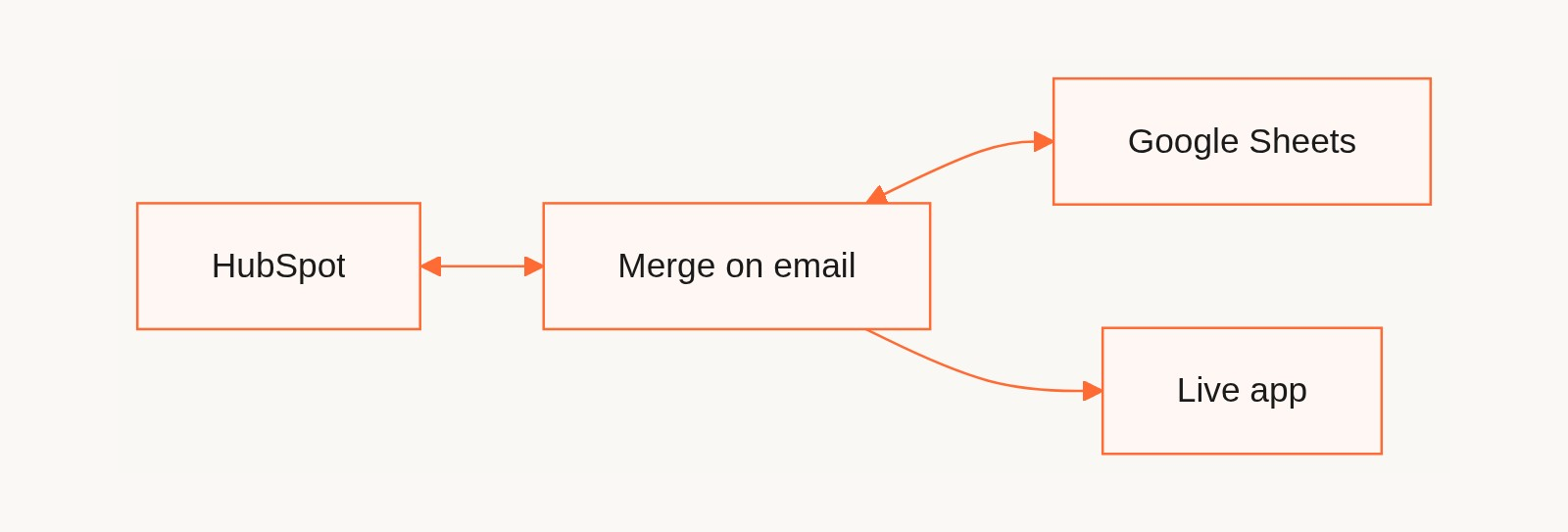
From that merged data, Gaia builds the app: a pipeline board, dashboards, and a searchable table, pre-populated with your records. Updates show up for everyone in real time, and comments and files sit on the record they’re about, so nobody emails screenshots of a spreadsheet back and forth. The primary key also anchors those comment threads, which is one more reason rule one matters.
This fits operations and sales ops teams running a pipeline or contact list that several people touch daily. The Solo plan starts at $99 per month (billed annually) with unlimited app users; Team adds shared workspaces and admin permissions, and Enterprise adds IT governance and audit logs. Start with the App Builder or compare plans on the pricing page.
Sources
- Set up and use HubSpot for Google Sheets
- HubSpot Assistant for Google Sheets™ - Free Google Sheets Extension
- Google is blocking me from using my scripts on my Sheets - Google Docs Editors Community
Recommended
- Google Sheets CRM for Small Teams: Copy Template, Exact Formulas, App
- Auto-Generate Sales Reports from HubSpot: 2026 Guide
- Stop Rebuilding Reports 3 Times a Year: Fix Your Stripe to Sheets Sync
- Ops Leaders: Merge Excel and Google Sheets Into a Live App in 4–8 Weeks
FAQ
Is HubSpot for Google Sheets Free to Use?
Yes, the HubSpot Assistant for Google Sheets add-on is free to install from the Google Workspace Marketplace and covers imports, lookups, and contact cleanup.
Can HubSpot Automatically Update a Google Sheet?
Yes, through workflows using the Create Google Sheet row or Update existing Google Sheet rows actions, but updates only affect the first row matching your lookup value, so a unique identifier column is essential.
What’s the Difference Between the Add-On and Workflows?
The add-on is a manual, on-demand tool for importing sheet data into HubSpot and looking up records from the sidebar. Workflows run automatically and push data one direction, from HubSpot out to a sheet, based on triggers you configure.
Why Does My HubSpot-to-Sheets Sync Keep Failing?
The most common causes are duplicate values in a lookup column, a deactivated HubSpot user on the connection, or Google blocking script permissions, which this Google Docs thread covers in detail. Reconnecting the integration and confirming sheet sharing settings resolves most cases.
What Does Gainable Cost Compared to Native Tools?
HubSpot’s native add-on and workflows are free. Gainable is a paid platform starting with the Solo plan at $99 per month billed annually, built for teams that need two-way sync between HubSpot and Sheets and a shared app on top of the data.