

The fastest fixes are CSV export for one-off reporting, no-code connectors or add-ons for scheduled pulls, automation platforms for event-driven rows, and the Stripe API paired with Google Apps Script for full control. Non-technical teams should start with a connector. Support and finance teams that need alerts should use an automation platform. Developers who want zero recurring fees should build with the API. Teams running production workflows across departments need a managed pipeline or a live app instead of a spreadsheet at all.
TL;DR:
- Using no-code connectors or automation platforms offers quick setup for real-time Stripe data updates, ideal for support teams needing alerts and quick logs.
- Building with Stripe’s API and Apps Script grants full control and no recurring fees but requires ongoing maintenance and handling pagination, rate limits, and validations.
- Batch updates through daily or nightly scheduled pulls provide a cost-effective and simple solution suitable for most finance and reporting teams.
- Proper security measures, including restricted API keys, regular permission audits, and webhook verification, are essential to protect sensitive payment data in shared sheets.
- Moving beyond spreadsheets becomes necessary when multiple teams require write access or comprehensive audit trails, favoring custom live apps for scalability and reliability.
Table of Contents
- What Are the Ways to Connect Stripe to Google Sheets?
- How Do You Automate a Scheduled Stripe Sync Without Code?
- How Do You Build a Stripe-to-Sheets Sync With the API and Apps Script?
- How Should You Structure Your Sheet as Stripe Data Grows?
- Real-Time, Near-Real-Time, or Batch: Which Schedule Fits Your Team?
- What Security Steps Protect Payment Data in a Shared Sheet?
- Why Do Stripe-to-Sheets Syncs Stop Working?
- When Should You Move Beyond a Spreadsheet Entirely?
- A Quick Pilot Plan Before You Commit to Any Method
- Turn Your Synced Stripe Data Into a Working App
- Where to Go for Official Docs and Deeper Guides
- Sources
What Are the Ways to Connect Stripe to Google Sheets?
Stripe doesn’t sync natively to Google Sheets. Every method you’ll find is a workaround, and picking the wrong one for your situation is how teams end up rebuilding their reporting three times in a year. Here’s what each family actually does, based on how import methods stack up in practice.
- CSV export: Pull a report from your Stripe dashboard and drop it into a sheet manually. Zero setup cost, zero automation. Fine for a monthly board deck, painful for anything you check weekly.
- No-code connectors and add-ons: Marketplace apps that map Stripe objects like charges, invoices, and customers straight into sheet columns on a schedule. Setup takes minutes; you trade a monthly fee for not touching code.
- Automation platforms: Tools that watch for a Stripe event (a charge succeeding, an invoice getting paid) and write a new row the moment it happens. Great for support teams who want a Slack ping and a logged row at the same time.
- API plus Apps Script: You write the logic that calls Stripe’s API and pushes rows into your sheet. No subscription fee, but you own the maintenance when Stripe changes a field or your quota gets tight.
- Managed pipelines or two-way sync: Enterprise-grade services that handle scaling, monitoring, and writing data back into Stripe or your source system, not just reading it out.
Setup time runs in the opposite direction of cost: CSV takes no setup and no money but plenty of your time every week. A managed pipeline costs more but takes almost none of your attention once it’s running.
How Do You Automate a Scheduled Stripe Sync Without Code?
A no-code automation platform gets you a working sync in under an hour. Here’s the sequence that holds up across most tools in this category.
- Connect accounts. Authorize the platform to access Stripe (usually a restricted API key) and grant it edit access to the target Google Sheet.
- Pick your trigger. Choose an event like “new charge” or “invoice paid,” or set a recurring scheduled fetch if you’d rather pull data in batches.
- Map your fields. Match Stripe fields (id, amount, currency, customer_id, created timestamp) to specific sheet columns. Don’t skip the timestamp. You’ll need it for every reconciliation later.
- Set batching and timezone. Decide whether each event writes one row immediately or whether the platform bundles rows and writes them on an interval. Lock the timezone so your day-end totals match your accounting calendar.
- Test with sandbox keys. Run the flow against Stripe test mode first and confirm the rows land with the right id, amount, and currency before switching to live keys.
- Turn on monitoring. Enable error notifications and check the platform’s run history weekly, not just when something breaks.
Pro Tip: Run your first week in test mode with real-looking dummy charges. Catching a mapping error before it writes 200 live rows to your sheet saves you an afternoon of manual cleanup.
How Do You Build a Stripe-to-Sheets Sync With the API and Apps Script?
If you want a sync with no recurring connector fee, build it yourself with the Stripe API and Google Apps Script. It takes longer to set up than a no-code tool, but you control every line of logic.
- Use the right key. Start with your
sk_test_key while building, and switch tosk_live_only once validated. Store it in Apps Script’s Properties Service, never hardcoded in the script body. - Paginate properly. Stripe returns data in pages. Loop using the
starting_afterparameter until the response comes back empty, and save the last processed charge ID as a checkpoint so reruns don’t duplicate rows. - Handle rate limits. Wrap your API calls in retry logic with exponential backoff, and log any failed request to a separate sheet tab for review.
- Schedule the run. Set a time-driven trigger in Apps Script for hourly or daily execution depending on how fresh you need the data.
- Validate the import. After your first full backfill, sum the amounts in Stripe’s dashboard and compare that total against the sum in your sheet. A mismatch usually means a pagination bug, not a Stripe error.
How Should You Structure Your Sheet as Stripe Data Grows?
Most teams start by syncing charges, then add customers, subscriptions, invoices, payouts, and balance transactions as reporting needs expand. Each object needs its own tab with consistent columns: id, created date, amount, currency, status, and customer reference at minimum.
Decide early whether to store Stripe’s raw JSON response in a single column alongside your normalized fields. It looks redundant until Stripe adds a new field or renames one, at which point that raw JSON column is what saves your historical data from a silent parsing failure.
- Partition by month. A tab per month for high-volume charge data keeps individual sheets fast and easy to archive.
- Keep a summary tab. Build one lightweight tab that aggregates totals for dashboards, so nobody’s chart is scanning 50,000 rows to compute a monthly sum.
- Watch the cell ceiling. Google Sheets tops out around 10 million cells per spreadsheet, and performance degrades well before that. Once you’re near it, move raw history to a warehouse like BigQuery and leave Sheets for summaries and dashboards.
Real-Time, Near-Real-Time, or Batch: Which Schedule Fits Your Team?
The right refresh rate depends on who’s looking at the sheet and what they’re deciding.
- Real-time via webhooks suits live dashboards and instant alerts, but it requires standing up a webhook endpoint and handling retries when Stripe resends events.
- Near-real-time polling (5 to 15 minutes) works well for support and reconciliation teams who need current data without building webhook infrastructure.
- Daily or nightly batches are the simplest and cheapest option for most finance and reporting teams, since they mean fewer API calls and lower cost.
For most reporting use cases, a nightly batch beats real-time streaming on cost and complexity. Save the webhook plumbing for dashboards that genuinely need sub-minute freshness.
What Security Steps Protect Payment Data in a Shared Sheet?
Payment data in a spreadsheet that fifteen people can edit is a liability if you’re not deliberate about access.
- Use read-only keys wherever the integration only needs to fetch data, not write it back.
- Avoid embedding keys directly in a shared file. Use Google’s OAuth flow or a service account, and keep secrets in a dedicated secret manager rather than a script comment.
- Rotate keys on a schedule and limit who has permission to create new integrations in the first place.
- Verify webhook signatures. Stripe’s own documentation covers how to verify that incoming webhook events actually originated from Stripe, and it’s worth building that check in from day one rather than retrofitting it after an incident.
Pro Tip: Audit who has edit access to your Stripe sync sheet every quarter. Spreadsheet permissions have a way of quietly outliving the person who granted them.
Why Do Stripe-to-Sheets Syncs Stop Working?
When rows stop showing up, work through this order before you assume Stripe is at fault.
- Check your API mode. Confirm you’re using live keys in production, not a leftover test key.
- Read the actual error. Rate limit errors and permission errors look different in the response body. Don’t guess.
- Verify your column mapping. If Stripe added or renamed a field, your script or connector may be writing to the wrong column or silently dropping data.
- Run a manual test fetch. If nothing’s arriving, trigger one manual pull and replay recent events to isolate whether the problem is Stripe, your script, or Sheets itself.
- Check Sheets quotas and sharing settings. A revoked share permission or a hit API quota on Google’s side causes the exact same symptom as a broken Stripe connection.
When Should You Move Beyond a Spreadsheet Entirely?
A synced sheet works until more than one team needs to write into it, and then it starts breaking in small, annoying ways. A live app built from that same Stripe and Sheets data solves the handoff problem directly: authentication, audit logs, dashboards, and two-way sync come built in, so nobody’s exporting a CSV to hand to finance anymore.
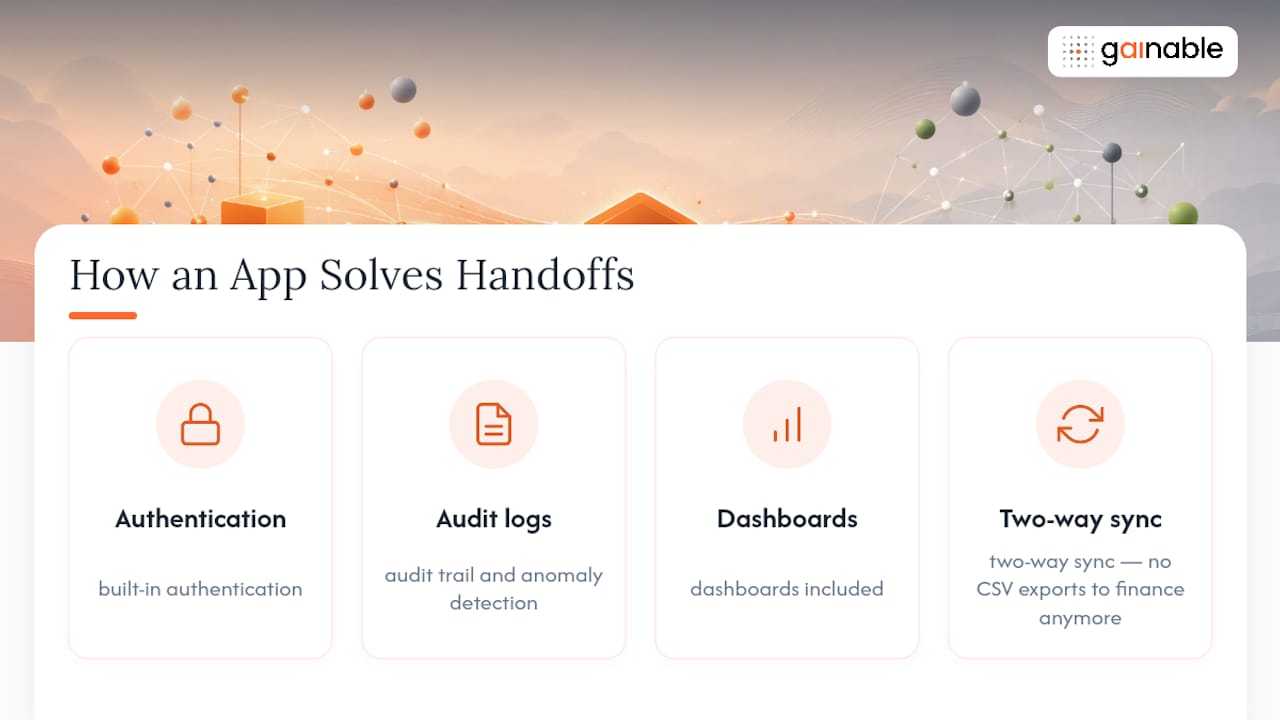
The decision rule is simple. If multiple teams need write access, or you need an audit trail and automated anomaly detection, a live app built on your existing data does more with less maintenance than a spreadsheet ever will.
A Quick Pilot Plan Before You Commit to Any Method
Pick the simplest method that meets your freshness requirement, and run it for two weeks before scaling it. Define three metrics up front: how fresh the data is, how complete it is, and how often it errors out. Decide who owns the credentials, who gets the failure alerts, and what your rollback looks like if the sync breaks mid-quarter.
— Rickard
Turn Your Synced Stripe Data Into a Working App
A connector gets Stripe data into a sheet. Gainable takes it the rest of the way by turning that same Stripe data, alongside your other sources like HubSpot, Airtable, or Salesforce, into a working application with real authentication, dashboards, and audit logs.

Instead of a script you maintain or a connector fee you renew every year, Gainable’s Stripe and Sheets connectors merge your data into one model and sync it both ways, so the app writes back instead of drifting out of date. Teams keep working inside the app while whoever owns the original sheet keeps their spreadsheet exactly as they like it. Gaia Autopilot watches for anomalies in your synced payment data and drafts the follow-up work before it piles into someone’s inbox.
If your team has outgrown export and copy-paste cycles, see how operations apps built from live data handle the workflow your spreadsheet is straining to cover, and start a trial to connect your own Stripe account.
Where to Go for Official Docs and Deeper Guides

For authoritative reference material, bookmark Stripe’s developer documentation for API keys, webhooks, and event handling. Google’s Apps Script and Sheets API documentation covers trigger scheduling and quota limits for custom builds. For a full walkthrough of a real-time pipeline setup, this step-by-step guide covers authentication choices in detail.
Sources
- How to Import Stripe Data to Google Sheets (2026)
- How to Sync Stripe to Google Sheets in Real Time (Step-by-Step Guide)
- Stripe Apps documentation