
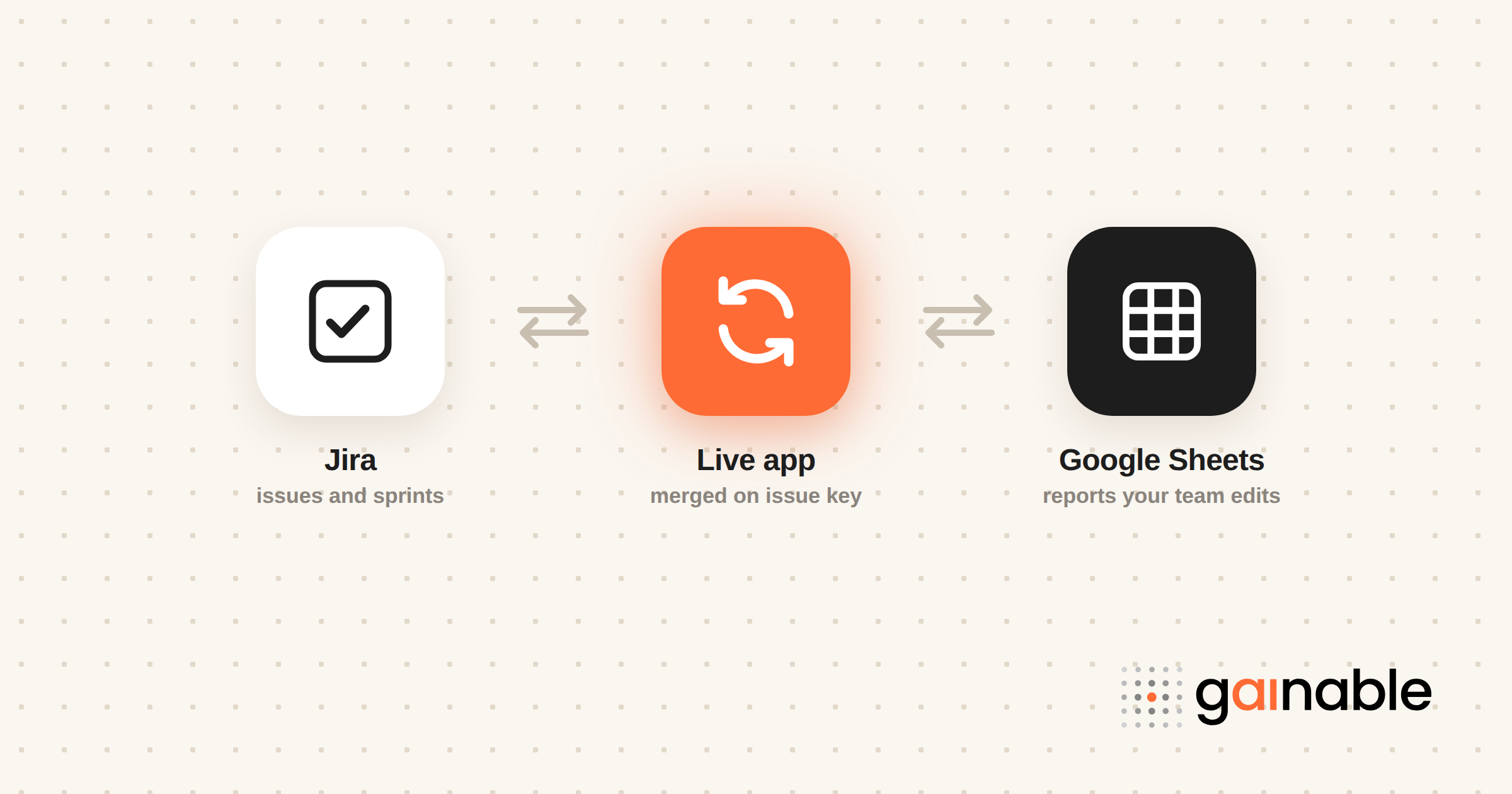
Use the official Jira Cloud for Sheets add-on when you need one-way imports for reporting: JQL queries, saved filters, or the =JIRA() function all work well. Reach for Apps Script, Jira Automation webhooks, or a no-code connector when you need write-back or near-real-time updates. Most problems people hit along the way come down to admin permissions or pagination limits, and both are fixable once you know where to look.
TL;DR:
- The Jira Cloud for Sheets add-on handles most one-way imports through JQL, filters, or the =JIRA() function, but large exports need a stable sort and chunked fetches.
- Admin permissions and Workspace policies cause most setup and connection issues; re-authorizing or getting an admin to trust the add-on fixes them.
- For frequent or near-real-time updates, Apps Script against the Jira REST API or a webhook-based connector works, at the price of more moving parts.
- Sort large queries on stable fields like created date and fetch in fixed-size chunks, so failures are visible instead of silent.
- When teams outgrow reporting, Gainable merges Jira and Sheets on the issue key and writes changes back to both, so edits don’t live in a spreadsheet nobody trusts.
Table of Contents
- Install and connect: enabling Jira Cloud for Sheets and handling admin requirements
- Import methods: JQL, saved filters, and the =JIRA() custom function
- Keeping data fresh: scheduled refreshes, Apps Script recipes, and event-driven webhooks
- Handling large queries and pagination: practical patterns
- Write-back realities: how to make Sheets update Jira safely
- Troubleshooting checklist: auth, admin policy errors, and common add-on failures
- When to move beyond connectors: a sheet-first app perspective
- Gainable: sheet-first apps for reliable sync, governance, and automation
- Sources
- FAQ
Install and connect: enabling Jira Cloud for Sheets and handling admin requirements
Getting the add-on running is usually a five-minute job, but a locked-down Workspace can turn it into a support ticket. Before you start, confirm your Google Workspace admin allows third-party add-ons and that your Atlassian account has permission to view the projects you want to pull from.
Here’s the connect flow:
- Open a Google Sheet, go to Extensions, then Add-ons, then Get add-ons, and search for Jira Cloud for Sheets in the Google Workspace Marketplace.
- Install it, then reopen the sheet and go to Add-ons, then Jira Cloud for Sheets, then Open.
- Click CONNECT, choose your Jira site, and sign in with your Atlassian credentials.
- Accept the requested permissions so the add-on can read your issue data.
Once connected, decide who owns the sheet. A single owner should manage the connection and control who can use the =JIRA() function, since that formula pulls live data and can slow down or break a sheet if too many people edit it at once. Share the sheet as view-only for most stakeholders and keep edit access limited to whoever maintains the reports.
Import methods: JQL, saved filters, and the =JIRA() custom function
There are three ways to pull data in, and each fits a different situation.
- Sidebar import with starred filters: fast for one-off reports, lets you set a Max Rows limit, and works well for smaller, well-defined pulls like a single sprint or backlog.
- =JIRA() custom function: formula-driven, so it recalculates as your sheet changes, and it’s the better choice for larger or paginated imports, according to Atlassian’s own documentation.
- Direct JQL queries: give you the most control, letting you filter by project, status, assignee, or custom fields in a single query instead of stacking manual filters.
A few JQL patterns come up constantly in operations reporting. For open bugs by component, something like project = OPS AND issuetype = Bug AND status != Done ORDER BY component ASC gets you there. For SLA misses, filter on a due date field against today’s date. For sprint burndown inputs, pull story points grouped by status and sprint name, then let your sheet do the math.
Governance matters here too. Restrict who can add =JIRA() formulas and keep a change log tab, since formula-driven pulls can quietly overwrite manual notes if someone isn’t careful.
Pro Tip: Keep raw Jira imports on a separate tab from your analysis tab, so formulas and formatting never get wiped out by a refresh.
Keeping data fresh: scheduled refreshes, Apps Script recipes, and event-driven webhooks
How often you need fresh data determines how much engineering effort is worth spending. Match the method to the need, not the fanciest option available.
- Scheduled or manual add-on refresh: fine for daily or weekly reports where a few hours of lag doesn’t matter, and it requires zero code.
- Apps Script plus the Jira REST API: set a time-based trigger to call the API, batch the results, and write them into your sheet, with error handling that logs failures instead of silently skipping rows. The Connected Sheets guide from Google Developers covers the programmatic side of this approach.
- Jira Automation webhooks or no-code connectors like Zapier or Make: closer to real-time, triggering a sheet update the moment an issue changes status, but they add a monthly cost and another point of failure to monitor.
Scheduled pulls are the right call for most weekly status reports and executive dashboards. Event-driven webhooks earn their complexity when a delay costs money, like a support queue where an SLA clock is running. Community discussions about real-time Jira to Sheets syncing consistently note that two-way, real-time sync is rare without a purpose-built connector or app, so set expectations before promising your team instant updates. If you’re weighing the two, our guide to replacing spreadsheet handoffs between engineering tools covers where each fits.
Handling large queries and pagination: practical patterns
Sidebar imports tend to fail quietly on large result sets, which is frustrating when you don’t know that’s the cause. Atlassian’s documentation points to the =JIRA() function with pagination as the reliable path for bigger exports.
- Sort your query on a stable field like created date or updated date, never on a value that can change between page fetches.
- Fetch data in fixed-size chunks and append rows rather than overwriting the whole range, so a failed refresh doesn’t leave gaps.
- For heavier analytics, export to CSV or push the data into a warehouse like BigQuery instead of asking a spreadsheet to hold everything.
A reliable export depends on pagination discipline: a stable sort key and page-sized fetches keep large Jira exports consistent and gap-free.
Write-back realities: how to make Sheets update Jira safely
The official add-on is built for reading data out of Jira, not writing back into it. If your team wants to update Jira issues from a spreadsheet, you have two realistic paths.
- Build it yourself with Apps Script and the Jira REST API, writing changes to a staging tab first, validating each row, then applying batched updates so you can roll back if something goes wrong.
- Use a marketplace connector built for bi-directional mapping, which handles the field matching and error states for you at the cost of a subscription.
Either way, put governance in place before opening write access to more than one person: a clear field mapping, a validation tab that flags anomalies before they hit Jira, and a log showing who changed what. When you need auditability without building custom write-back logic, Jira Automation rules can apply the changes on the Jira side instead, giving you a documented trail without direct sheet writes.
Pro Tip: Never let more than one person write to Jira from the same sheet without a validation step. Silent overwrites are the most common way write-back projects lose trust.
Troubleshooting checklist: auth, admin policy errors, and common add-on failures
Most add-on failures fall into a short list of causes.
- Auth issues: test the add-on in an incognito window, check your connected apps under your Google Account settings, and re-authorize if the connection looks stale.
- Admin policy errors (Error 400: admin_policy_enforced): this means Google Workspace policy is blocking OAuth consent, and a Workspace admin needs to mark the app as trusted or allow it explicitly.
- Sidebar stuck loading or user fields showing blank: disconnect and reconnect the add-on, then double-check your Jira column configuration. If the issue persists, it’s worth raising directly with Atlassian support.
Users on the Atlassian Community forums frequently describe the add-on as lightweight, and most reported fixes trace back to clearing connected-app permissions or getting admin approval rather than anything broken in the sheet itself.
When to move beyond connectors: a sheet-first app perspective
Connectors are the right starting point, but they show their limits fast once a team scales past casual reporting. If you’re seeing repeated race conditions between editors, a growing pile of manual field-mapping work, or a need for an audit trail, that’s your signal.
A sheet-first app keeps the spreadsheet as the input your team already trusts, while adding authentication, permissions, and two-way live sync underneath it. That’s a structural fix, not another workaround layered onto the same connector.
Gainable: sheet-first apps for reliable sync, governance, and automation
Connectors solve the reporting problem. They rarely solve the workflow problem, which is that your team keeps working out of email threads and copy-pasted exports long after the data lands in a sheet. Gainable connects to Jira and Google Sheets with read and write access on both, and builds a working app from the structure that’s already there, no prompts required.
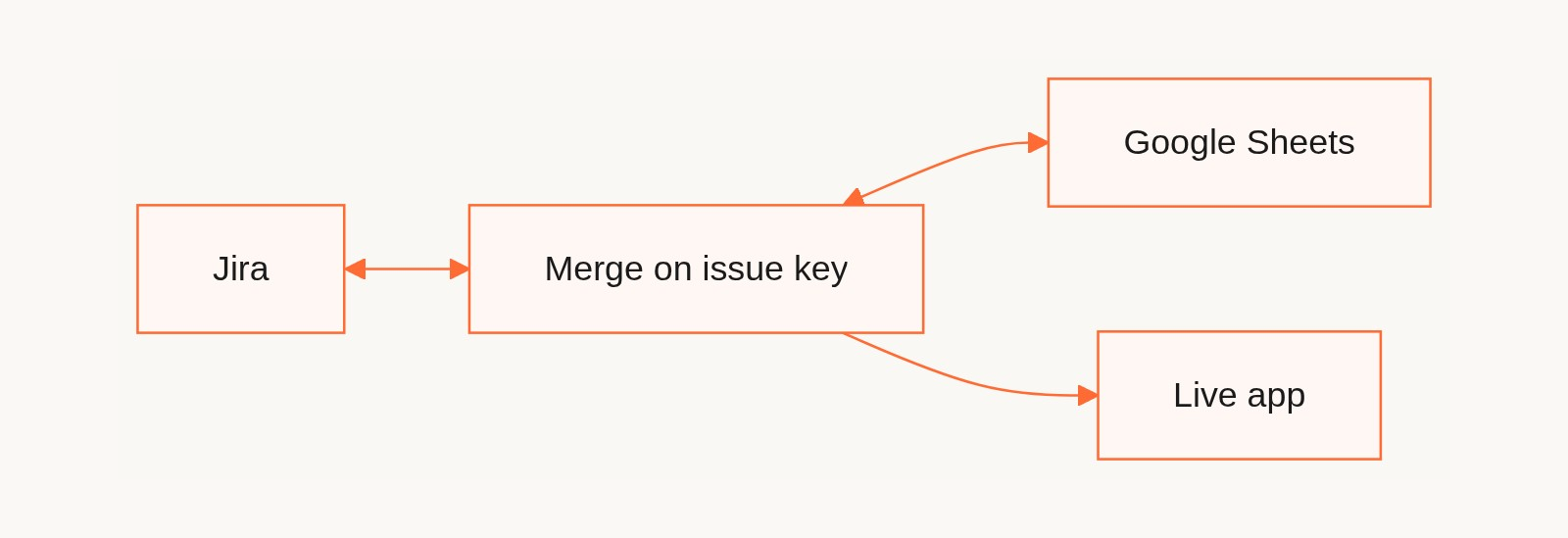
- A data model merges Jira and your sheet into one record on the key you choose, usually the issue key, with source priority deciding which side wins when a field disagrees. The same model can pull in HubSpot, Airtable, Salesforce, or Linear.
- Sync runs both ways, so an edit in the app writes back to Jira and the sheet instead of leaving one of them stale.
- Every app ships with authentication, dashboards, real-time updates, and comments and files on each record, so the conversation about an issue stays next to the issue.
This fits teams who have outgrown a connector’s one-way limits but don’t want to hand the project to engineering. Pricing is per builder with unlimited app users: Solo starts at $99 per month billed annually, Team adds shared workspaces and admin permissions, and Enterprise adds IT governance and audit logs. Compare plans on the pricing page. If your Jira and Sheets setup has turned into a maintenance job, that’s worth a look before you write another Apps Script workaround.
Sources
- Use Jira Cloud for Sheets | Jira Cloud | Atlassian Support
- Jira Cloud for Sheets - Google Workspace Marketplace
- Connected Sheets guide | Google Developers
Recommended
- Ops Teams: Live HubSpot Google Sheets Sync from $99/month
- End Spreadsheet Handoffs: Software Tools for Engineering Teams
- Ops Leaders: Merge Excel and Google Sheets Into a Live App in 4–8 Weeks
- Turn Spreadsheets Into Live Operations Dashboards for Operations Teams
FAQ
How can I connect Jira to Google Sheets?
Install the Jira Cloud for Sheets add-on from the Google Workspace Marketplace, open it from the Extensions menu, and connect it to your Jira site with your Atlassian login. From there you can import data using JQL, a saved filter, or the =JIRA() function.
Is Jira being phased out?
No, Jira remains Atlassian’s active issue-tracking product and continues to receive updates, including to its Google Sheets integration. There’s no indication from Atlassian of the product being discontinued.
How do I keep Google Sheets synchronized with Jira?
Use the add-on’s manual or scheduled refresh for reports that don’t need to be instant, or set up Apps Script with the Jira REST API for automated pulls on a schedule. For near-real-time updates, a webhook-based connector triggers a refresh the moment a Jira issue changes.
Why isn’t Google Sheets syncing with Jira?
The most common cause is a Google Workspace admin policy blocking the add-on’s permissions, which shows up as Error 400: admin_policy_enforced and needs a Workspace admin to resolve. Other frequent causes include an expired authorization or a query returning too many results for the sidebar to load.