

Yes, there are tools that do exactly this. You upload an Excel file or connect a Google Sheet, and the platform reads your columns, infers a data model, and generates a working app for your team, with views, roles, and basic workflows included. You don't need a developer, a schema design session, or a blank canvas to start from.
But "automatic" doesn't mean unlimited. Before you upload your spreadsheet and expect magic, you need to know what these tools handle well, where they'll slow down, and what needs cleaning before import. This guide covers all of it.
Supported sources and file limits
Most spreadsheet to app builders support Google Sheets (via live connection) and Excel workbooks (.xlsx / .xls), with CSV often accepted as a flat-table fallback. What "automatic build" means in practice is this: the tool reads your column headers and row data, infers field types (text, number, date, boolean, etc.), and generates a UI with list views, detail records, and forms. Role-based access is either inferred from your data or set during a quick review step.

What breaks first as complexity grows:
- Too many rows with computed columns. Performance degrades when import has to evaluate hundreds of calculated fields across thousands of rows.
- Inconsistent headers. Blank header cells, merged cells spanning multiple columns, or headers in row 2 (not row 1) all cause parsing failures.
- Empty rows inside the data range. A blank row mid-table is often read as the end of the dataset.
- Workbook complexity. A 3-tab workbook with consistent headers parses cleanly. A 15-tab workbook mixing lookup tables, summary sheets, and raw data needs manual guidance.
A quick compatibility guide before you start:
| Status | Spreadsheet type | Expected behavior |
|---|---|---|
| Green | Single flat table, consistent headers, clear unique ID column | Imports and builds automatically |
| Yellow | Computed/linked data, multi-tab workbooks, some VLOOKUP-based columns | Imports with some manual mapping needed |
| Red | Macros/VBA, heavy array formulas, cross-sheet volatile functions as primary logic | Requires prep work; don't import raw |
Pre-import checklist:
- Row 1 must be headers, one header per column, no merged cells
- Add a unique ID column (customer_id, order_id, etc.) to every table you want as a primary entity
- Ensure column types are consistent down the column (no "Active" in a date column)
- Delete blank rows inside your data range
- Remove any merged cells from the header row or data area
How formulas and macros are handled
Most no-code app builders for Google Sheets and Excel treat formulas as their resolved values at import time. The formula =SUM(B2:B100) becomes 4,250. The formula logic doesn't travel with it.
That's fine for simple aggregations and lookups, but it creates real problems in a few cases:
- VLOOKUP/XLOOKUP across renamed tabs. If your formula references Sheet2!A:B and that tab gets renamed, the import either pulls stale values or fails silently.
- ARRAYFORMULA outputs used as IDs. If a primary key column is dynamically generated by a formula, you may get duplicate or empty values depending on when the formula last evaluated.
- Volatile functions (TODAY(), NOW(), RAND()). These recalculate constantly in a live sheet but freeze at import time. Your app won't recalculate them.
- Cross-sheet dependencies. A formula on Tab A that pulls data from Tab C may import as a static value if Tab C isn't part of the same import scope.
Excel macros and VBA don't run inside app builder runtimes at all. The runtime isn't Excel; it's a web application stack. If your business logic lives inside a macro (auto-assigning records, running status transitions, sending internal notifications), you'll need to re-express that logic using the builder's own workflow or automation tools.
The practical fix: before import, freeze computed outputs into plain value columns. Copy the formula column, paste as values only, and rename it clearly (for example, "total_revenue_calc" becomes "total_revenue"). This preserves the output while making import clean and deterministic.
Gainable's Gaia Synthesis engine takes a deliberate stance here. The build is contract-first. A guided conversation produces a signed contract covering data, derivations, seed, UI, and autonomy, and deterministic Node compilers emit the app from that contract. The model decides the contract, the compiler writes the app, and the same contract produces the same app every time. On a clean build no LLM writes application code; a post-build audit only re-touches code if a validator catches a real error. Automation logic that was previously buried in macros gets re-expressed as governed Autopilot agents, where every drafted action goes through an approve/edit/skip inbox before it executes.
Multi-sheet and relational data guidance
When you import a multi-tab workbook, each tab is typically treated as a separate table. The builder reads tab name as table name, row 1 as field headers, and subsequent rows as records.
Relationships are inferred from shared key columns. If your Customers tab has a customer_id column and your Orders tab also has a customer_id column, most builders will detect that as a foreign key relationship and let you join them in the generated UI.
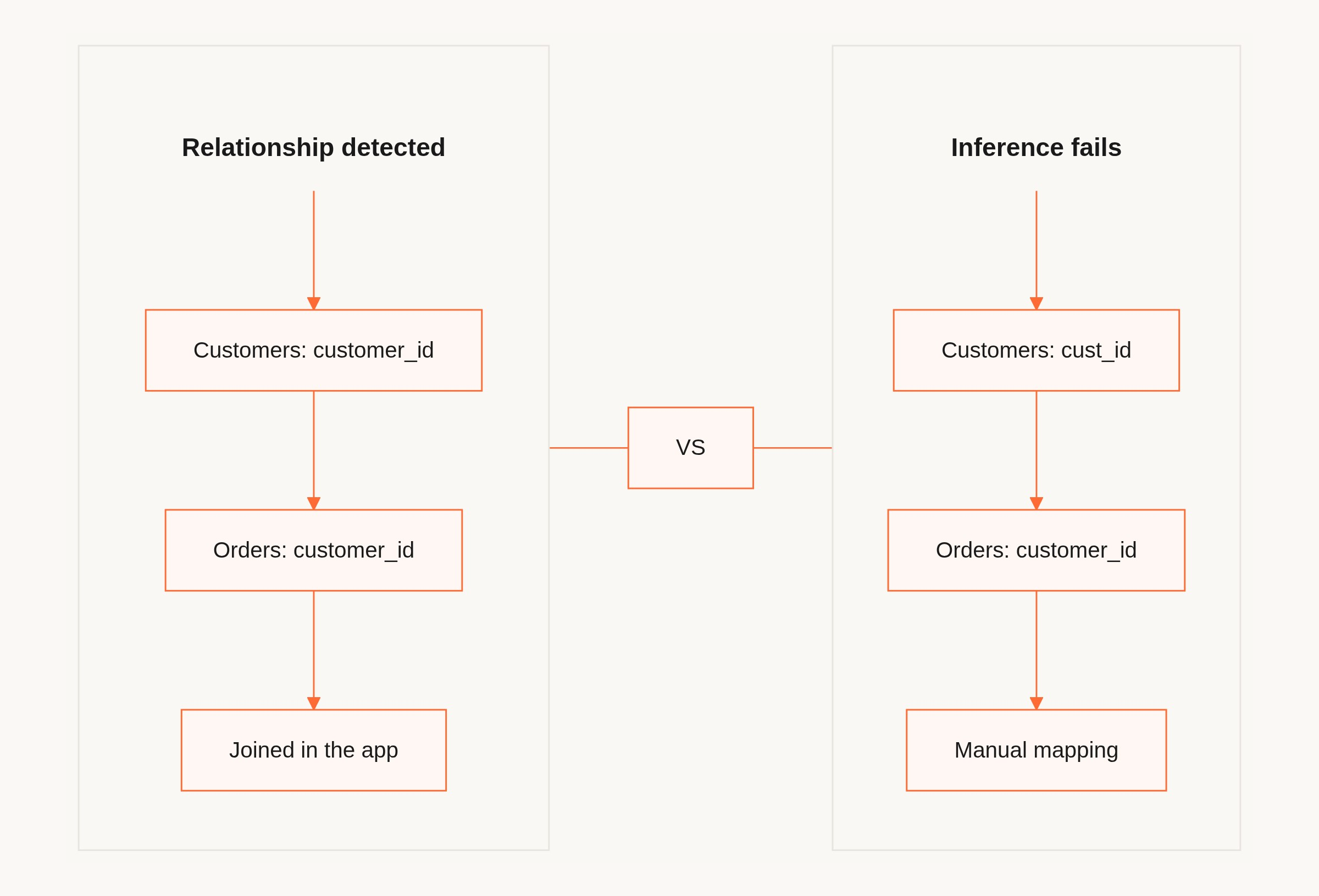
For this to work automatically, you need:
- A consistent unique key column in every table that will participate in a relationship
- The same column name used across both sides of the join (customer_id in Customers and customer_id in Orders, not cust_id on one side)
- No duplicate values in the parent table's key column
When sheets are loosely modeled, automatic inference fails. Common problem cases:
- Different header rows on different tabs (row 1 on Tab A, row 3 on Tab B after two summary lines)
- Duplicate column names across tabs with different meanings ("Status" in Customers vs "Status" in Orders meaning different things)
- No shared keys at all, just semantically related data with no explicit join column
When you can't clean this up before import, pre-joining into a single flat table is often faster than trying to map loose relationships post-import. A denormalized table with all the fields you need for one view is easier to work with than three loosely connected tabs. You can always model relationships properly in a second pass.
For a deeper look at structuring data across sources, the data connectors documentation covers how Gainable merges and normalizes fields from multiple connections into a unified model.
Common import errors and fixes
These are the failures you'll hit in practice, and what to do about them:
| Error / symptom | Likely cause | Fix |
|---|---|---|
| Import stops midway / partial load | Blank row inside data range | Delete all blank rows within the table; ensure data is contiguous |
| "Missing header" error | Blank column header, merged header cell | Fill every header cell; un-merge all cells in row 1 |
| Duplicate records on import | No unique ID column, or ID column has repeating values | Add a unique ID column; deduplicate before import |
| Fields import as wrong type | Inconsistent values in a column (e.g., "N/A" in a number column) | Standardize all values; use a consistent null representation (blank cell, not text) |
| Relationship not detected | Key columns named differently across tabs | Rename to match exactly (customer_id on both sides) |
| Timeout / very slow import | Heavy computed columns, many volatile formulas | Freeze formulas as values before import; split large tables into smaller ones |
| Permission error (Google Sheets) | Sheet not shared with the connecting account | Share the sheet with the service account or grant the OAuth scope during connection |
| Formula output shows #REF! or #N/A | Formula references a deleted range or missing tab | Resolve formula errors in the source sheet before import; paste as values |
If you're seeing slow sync or partial loads on a large sheet, the fastest fix is to reduce scope: limit the import to the columns you need, remove computed columns you can recalculate in the app, and split one wide table into two narrower ones with a shared key.
A useful pattern from Gainable's validation pilots: the main friction point teams hit isn't the build itself, it's data ingestion. The prototype from spreadsheet guide walks through the prep steps that prevent most of these errors before import.
Gainable's Gaia engine generated the horizon-summit-2026 reference app in approximately 6 minutes from a single Excel file: 20 data models, 31 API route modules, 8 views including SSO, role-based access, embedded chat, realtime sync, AI copilots, and seeded data. The minutes a build takes are the model deciding the contract and the audit checking the result, not the compile. A July 2026 security self-assessment (AIUC-1 v2026.07.15) across 543 generated apps found 0 credential/secret findings and 0 cross-customer database exposure across 537 dedicated databases. Those numbers matter if you're building something your team will rely on day to day, not a demo you'll rebuild later.
Your spreadsheet already contains the data model. The columns are the spec. Drop it into Gainable, and Gaia reads your fields, infers relationships, and builds a governed team app you can review, refine, and publish. You skip the prompt engineering and the IT ticket entirely.