

Replacing manual spreadsheets with automation is defined as substituting repetitive, human-driven data tasks with software that captures, processes, and reports data without manual input. Teams that make this shift save 8–12 hours weekly per employee on data handling alone. Manual data entry also costs businesses billions annually in errors, and AI automation cuts processing times by up to 99% for targeted workflows. The industry term for this practice is workflow automation, and it covers everything from automated data entry to real-time reporting pipelines. If your team still acts as “human middleware” between systems, this guide shows you the exact steps to change that.
Which spreadsheet workflows should you replace with automation first?
Not every spreadsheet workflow is worth automating. Prioritize those with high time cost, high automation fit, and medium-to-low dependency risk. Trying to automate everything at once is the fastest way to stall a project before it delivers any value.
Score each workflow on three criteria before you commit:
- Time consumed. Does this task take more than two hours per week per person? If yes, it belongs near the top of your list.
- Error impact. Does a mistake here cause downstream problems, like a wrong invoice total or a missed lead? High error impact means high automation ROI.
- Business criticality. Is this workflow customer-facing or tied to revenue? Critical workflows justify the investment.
Workflows with the best automation fit include weekly inventory updates, client report generation, lead routing from CRM forms, and invoice processing. These tasks follow fixed rules, repeat on a schedule, and produce outputs that are easy to verify. They are also the workflows where being “human middleware” costs you the most time.
Pro Tip: The best first projects automate the workflows with the highest ROI. Pick one workflow, prove the value, and use that win to build team confidence before expanding.

Avoid automating workflows that rely heavily on judgment calls, irregular data, or undocumented exceptions. Those need process design work before automation can help.
How do you audit and map your existing spreadsheet workflows?
Automation built on a poorly understood process will fail. Before you write a single rule or connect a single API, you need a clear picture of what your spreadsheets actually do.
Follow these steps to audit your workflows:
- List every spreadsheet your team uses. Include shared drives, email attachments, and local files. You will find more than you expect.
- Document what each spreadsheet does. Note data inputs, formula logic, conditional formatting rules, and any manual corrections people make before sharing the file.
- Identify every person who touches the file. Map their role, what they add or change, and when they do it. This reveals handoffs that automation must replicate.
- Find the hidden patches. Ask your team directly: “What do you fix manually before sending this out?” Those undocumented corrections are the most common cause of automation failures.
- Map the end-to-end process. Draw the full workflow from data source to final output. The spreadsheet is usually just one step in a larger chain.
Successful spreadsheet migrations start by viewing spreadsheets as tools within larger workflows, not standalone processes. That mindset shift changes what you build and how you scope it.
Pro Tip: Most spreadsheet replacements fit within 5–10 screens and 1–3 user roles for the MVP stage. Keep your first automated app small and focused. Scope creep kills more automation projects than technical problems do.
Step-by-step guide to building and running your automation
Building automation alongside your existing spreadsheets is the safest path to a successful transition. The goal is to run both systems in parallel, compare outputs, and only retire the spreadsheet when you trust the automated results completely.
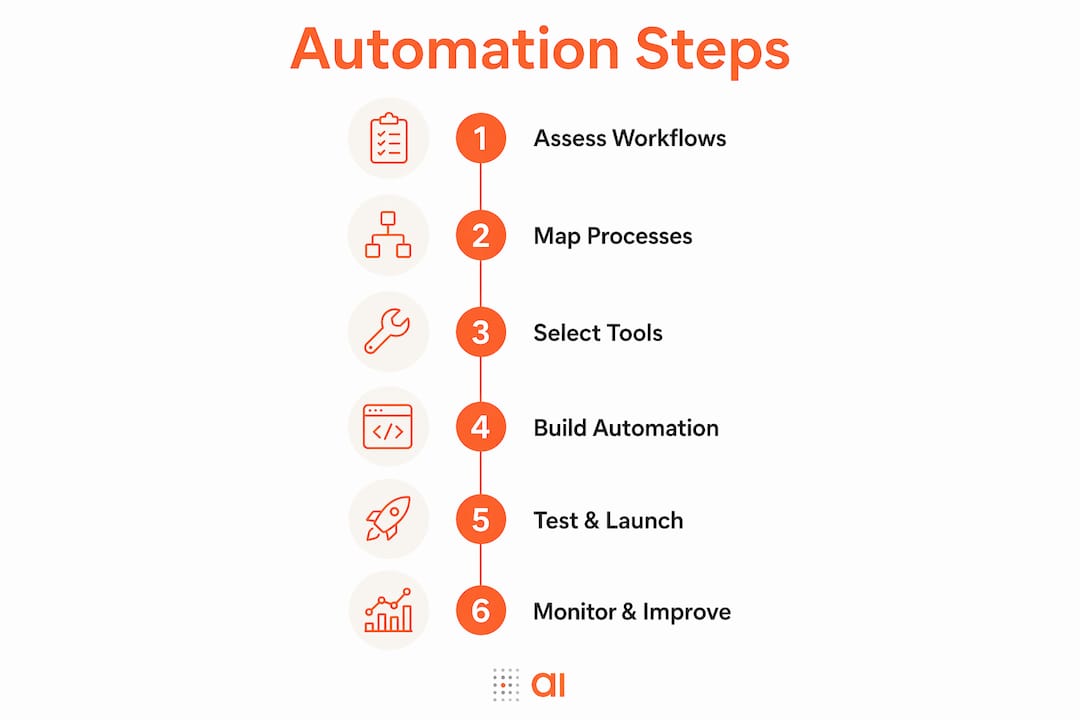
Here is how to build and implement your automation:
- Choose your automation approach. Options include AI bots built with tools like n8n and GPT-4, no-code workflow platforms, or purpose-built web apps. Specialized platforms can import 350,000 rows in 35 seconds, which shows how far automated tools outpace manual methods.
- Build the MVP. Automate one workflow end-to-end. Connect your data source, define the processing rules, and set up the output. Do not add extra features yet.
- Run the parallel phase. Keep your spreadsheet running while the automation runs alongside it. A 2–4 week parallel run is the industry-standard best practice before full cutover.
- Compare outputs daily. Check every discrepancy between the automated output and the spreadsheet output. Each difference is a clue about a rule you missed or an edge case you did not account for.
- Resolve discrepancies before moving on. Investigating each difference early prevents project abandonment later. Teams that skip this step lose trust in the automation and revert to the spreadsheet.
- Roll out incrementally. Add one workflow at a time. Most teams fully migrate core processes within 3–6 months using this approach.
Running automation in parallel is not a sign of doubt. It is the professional standard. Every discrepancy you find and fix during the parallel phase is a failure you prevented in production.
Common pitfalls to avoid during implementation:
- Skipping the parallel phase because the automation “looks right”
- Automating the spreadsheet layout instead of the underlying business process
- Giving the automation too many responsibilities in the first version
- Failing to document the rules you encode so others can maintain the system
Automation reduces task time by up to 80% for repetitive work like data entry, formula application, and report generation. That number only holds when the automation is built on a well-mapped process.
Common mistakes when replacing spreadsheets with automation
The transition from spreadsheets to automated workflows fails most often because of process mistakes, not technology problems. Knowing what to watch for saves you weeks of rework.
- Deleting legacy spreadsheets too soon. Archive them for 30–60 days after cutover. Teams regularly need to query historical data or run audits in the weeks after a migration. Losing that data creates a “data blackout” that erodes trust fast.
- Over-engineering the first version. Build the simplest automated workflow that solves the core problem. Add complexity only after the basic version is proven and trusted.
- Ignoring edge cases. Every spreadsheet has exceptions that someone handles manually without documenting them. Find these during your audit, or they will surface as errors in production.
- Skipping audit trails. Your automated system must log who changed what and when. This is non-negotiable for finance, compliance, and operations teams.
- Neglecting data security during migration. Moving data between systems creates exposure. Confirm that your automation platform encrypts data in transit and at rest before you connect any sensitive source.
Pro Tip: Treat your no-code tools for workflows selection as seriously as you treat the process design. The platform you choose determines how fast you can iterate and how much your team can self-serve without engineering support.
Real-world examples of spreadsheet automation and their results
The clearest argument for automation is what teams actually achieve when they commit to it.
| Workflow | Before automation | After automation |
|---|---|---|
| Inventory tracking | 12 hours/week of manual updates | Zero human intervention required |
| Client reporting | 4–6 hours/week per account manager | Reports generated on schedule automatically |
| Lead qualification | Manual CRM data entry, 2+ hours daily | Instant routing based on form data |
| Invoice processing | Manual matching, high error rate | Automated matching with exception flags |
A successful 3-week automation sprint can permanently eliminate 8–12 hours per week of manual data handling per employee. That is a conservative estimate for teams running multiple high-volume workflows.
The benefits go beyond time savings:
- Data accuracy improves because rules are applied consistently, not by whoever happens to be working that day
- Process speed increases because automation does not wait for someone to open a file
- Teams shift their attention to decisions that require judgment, not to copying data between tabs
Automation enables teams to focus on strategic judgment instead of mechanical data entry. The shift is from managing static files to operating real-time systems that surface the right information at the right time. For accounting teams specifically, replacing manual reconciliation spreadsheets with a team app produces measurable gains in both speed and accuracy within the first month.
Key Takeaways
Replacing manual spreadsheets with automation delivers the highest ROI when you prioritize high-volume, rule-based workflows, run a 2–4 week parallel phase, and archive legacy files before retiring them.
| Point | Details |
|---|---|
| Prioritize by ROI | Score workflows on time cost, error impact, and business criticality before automating. |
| Audit before you build | Document every manual correction and handoff so automation replicates the real process. |
| Run parallel phases | Operate automation alongside spreadsheets for 2–4 weeks to catch discrepancies before cutover. |
| Archive, don’t delete | Keep legacy spreadsheets for 30–60 days post-migration to support audits and historical queries. |
| Start small, then expand | Automate one workflow first, prove the value, and use that result to earn team trust. |
Why automation is a process transformation, not a tool swap
The teams I have seen struggle most with spreadsheet automation share one belief: they think they are replacing a file. They are not. They are replacing a process, and that distinction changes everything about how you plan, build, and roll out the work.
When you treat automation as a tool swap, you recreate the spreadsheet in a new interface. You get the same logic, the same limitations, and the same manual patches, just in a shinier wrapper. The teams that succeed treat this as a chance to ask: “What should this process actually do?” That question leads to better automation and better outcomes.
I have also seen teams underestimate the behavior change required. The technology is usually the easy part. Getting an operations manager to trust a dashboard instead of a spreadsheet they have used for three years takes time and visible evidence. That is exactly why the parallel run matters so much. It is not just a technical safety net. It is a trust-building exercise.
My honest recommendation: pick the workflow that causes the most visible pain for your team right now. Automate that one first. When your team sees 12 hours of weekly work disappear, the conversation about the next workflow becomes much easier. Automation earns its place by proving itself, not by being mandated.
— Rickard
What Gainable does when spreadsheets are holding your team back
If you have mapped your workflows and know which ones to automate first, the next question is which platform gets you there fastest without requiring a developer.
Gainable connects directly to your existing data sources, including HubSpot, Stripe, and Google Sheets, through its data connectors. It auto-generates a working team app from your data, so you are not starting from a blank canvas. You refine the app using natural language queries, and the built-in database keeps everything live and in sync across your team. Gainable also includes built-in collaboration tools and an AI assistant that drafts actions based on what the data shows, so your team spends time on decisions, not on data entry. No coding required.
FAQ
What does it mean to replace manual spreadsheets with automation?
Replacing manual spreadsheets with automation means substituting human-driven data tasks with software that captures, processes, and reports data automatically. The goal is to eliminate repetitive entry, reduce errors, and free your team for higher-value work.
How long does a spreadsheet automation project take?
Most teams complete a core workflow migration within 3–6 months using an incremental approach. A focused 3-week sprint on a single workflow can eliminate 8–12 hours of manual work per week immediately.
What workflows are easiest to automate first?
Inventory tracking, client reporting, lead routing, and invoice processing are the highest-fit workflows for automation. They follow fixed rules, repeat on a schedule, and produce outputs that are straightforward to verify.
Should I delete my old spreadsheets after automating?
Archive them for 30–60 days after cutover instead of deleting them. Teams regularly need historical data for audits and reporting in the weeks following a migration.
Do I need coding skills to automate spreadsheet tasks?
No coding skills are required when using modern no-code platforms. Tools like Gainable let you build and refine automated team apps using natural language, connecting directly to your existing data sources.