

Prototyping a business app from a spreadsheet means transforming your existing Excel or Google Sheets data directly into an interactive application without writing a single line of code. The industry term for this process is “rapid application prototyping,” and modern AI-powered no-code platforms have made it faster than most teams realize. You no longer need a developer or a six-week sprint. With the right data structure and the right platform, you can go from spreadsheet to working app in under a day. This guide covers the prerequisites, methods, step-by-step process, and the most common pitfalls to avoid.
How to prototype a business app from a spreadsheet
The core idea is simple. Your spreadsheet already contains structured data, column headers, and rows of records. A no-code or AI-powered platform reads that structure, detects the schema automatically, and generates a functional app with views, forms, and dashboards built around your data. The two main approaches are AI-powered generation and legacy low-code tools like Microsoft Power Apps. AI-powered platforms require almost no configuration. Legacy tools give you more manual control but demand more setup time. Choosing between them depends on your team’s technical comfort and how fast you need to move.
Preparing your spreadsheet data for app prototyping
Clean data is the single biggest factor in a successful prototype build. Messy spreadsheets or merged cells cause AI auto-detection failures, forcing you into manual cleanup that defeats the purpose of rapid prototyping. Treat your spreadsheet like a database table before you upload anything.
Follow these rules before you touch any platform:
- Put column headers in the first row only. No sub-headers, no merged title rows.
- Remove all blank rows and blank columns inside your data range.
- Use consistent data types in each column. Dates should all be dates, numbers should all be numbers, and text should all be text.
- Avoid merged cells entirely. They break schema detection on every platform.
- Remove special characters from column names. “Sales Rep Name” works. “Sales Rep (Name)?” does not.
- Format your data as an Excel table or named range before uploading to any low-code tool.
One common mistake teams make is leaving lookup values inconsistent. If your “Status” column contains “Active,” “active,” “ACTIVE,” and “Yes,” the platform will treat these as four separate values. Standardize everything before you start.
Pro Tip: Run a quick duplicate check and a data validation pass in Excel or Google Sheets before uploading. Catching errors at the source takes five minutes. Fixing them inside a generated app takes much longer.

How do modern AI-powered no-code platforms create apps from spreadsheets?
AI-powered platforms have changed what “rapid prototyping” actually means. AI-powered platforms can turn spreadsheets into full-stack applications automatically, detecting schema and generating list views, form views, and dashboards with no developer or schema writing required. That is a fundamentally different experience from anything available three years ago.
Here is what a typical AI-driven generation process produces from a single upload:
- List view: A searchable, sortable table of all your records.
- Form view: An auto-generated entry and edit form for each record.
- Dashboard: Summary charts and KPI cards built from your column data.
- Role-based access: Different permission levels for different team members.
- Natural language refinement: You can type a prompt like “add a filter for region” and the app updates.
“AI-driven app building platforms generate multiple view types and role-based access in one upload, speeding prototype readiness. Non-technical business professionals can create fully functional apps by simply uploading their data or typing a plain-English prompt.”
Gainable takes this further by connecting to live data sources like HubSpot and Stripe alongside your spreadsheets. Its AI-powered app builder generates apps that reflect your actual workflow, not a generic template. You refine the app through natural language queries, and changes apply in real time. That means your prototype stays current as your data changes, without any developer involvement.
The speed difference over legacy tools is significant. Well-structured files can generate a full-stack app with a frontend, backend, and real database in under five minutes. That is not a marketing claim. It is the practical result of automated schema detection and code generation working together.
Legacy low-code methods: how Power Apps and similar tools use spreadsheets
Legacy low-code platforms remain a solid choice for teams already inside the Microsoft ecosystem. Microsoft Power Apps supports three primary Excel integration methods: uploading an Excel file to create a Dataverse table, connecting to a cloud-hosted Excel file for real-time sync, or starting from a blank canvas app with Excel as the data source. Each method suits a different level of technical readiness.
| Method | Best for | Key requirement |
|---|---|---|
| Upload Excel to Dataverse | One-time data migration | Formatted as Excel table |
| Connect cloud Excel (OneDrive) | Live data sync | File hosted in SharePoint or OneDrive |
| Blank canvas with Excel source | Full custom layout | Familiarity with Power Fx formulas |
Uploading Excel or CSV to Dataverse gives you improved security and cloud storage benefits, plus the ability to reuse that data across multiple apps. The tradeoff is that changes to the original spreadsheet do not automatically update the Dataverse table. You need to re-import or use a connector.
Connecting to cloud-hosted Excel files solves that problem by allowing real-time data sync without manual exports. This works well for teams that update their spreadsheet daily and want the app to reflect those changes immediately.
The main limitation of legacy low-code tools is the learning curve. Power Apps uses its own formula language, Power Fx, which resembles Excel formulas but requires meaningful time to master. For teams without a dedicated Power Platform developer, the setup time can stretch from hours to days.
Pro Tip: If your team already uses Microsoft 365 and has a Power Apps license, start with the “connect cloud Excel” method. It gives you live sync without committing to a full Dataverse migration on day one.
Step-by-step guide to building your app prototype from spreadsheet data
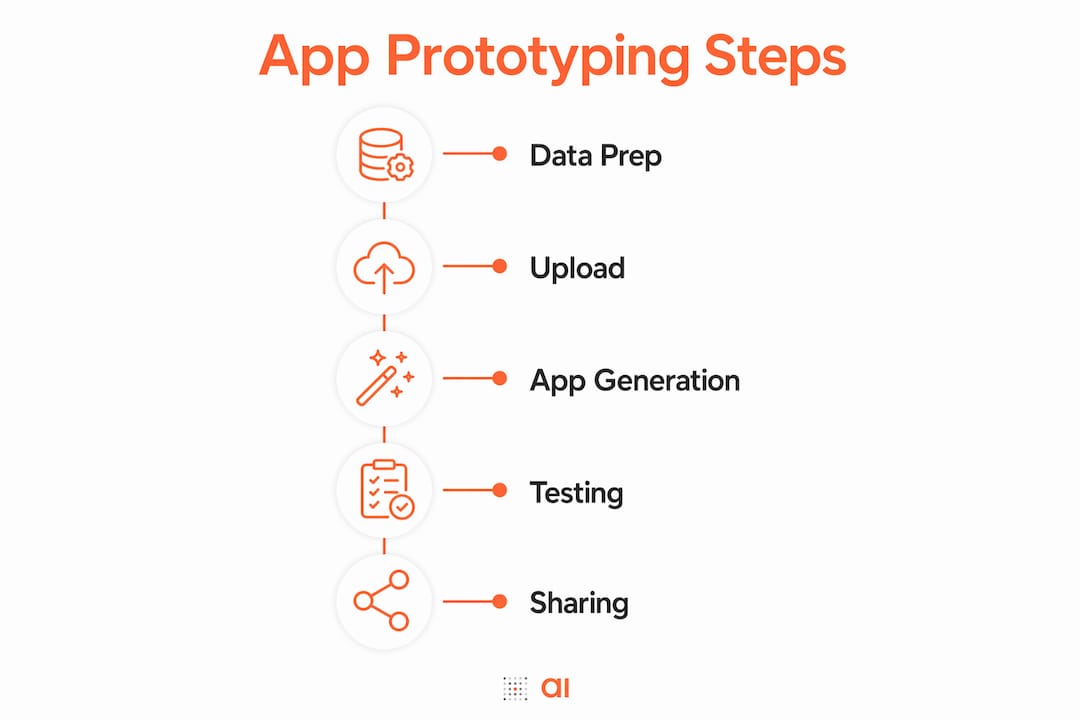
Follow this sequence to go from raw spreadsheet to a shareable prototype.
- Audit your spreadsheet. Check for blank rows, merged cells, inconsistent data types, and duplicate headers. Fix every issue before moving forward.
- Choose your platform. Pick an AI-powered platform like Gainable for speed and minimal configuration. Pick a legacy low-code tool like Power Apps if your team needs deep Microsoft integration or custom formula logic.
- Format your data correctly. Convert your data range to an Excel table or a clean Google Sheets range. Name your columns clearly. Remove any formatting that is purely visual, like colored rows used as separators.
- Upload or connect your data. For AI platforms, drag and drop your file or paste a sheet URL. For Power Apps, use the “create from data” flow and select your Excel source.
- Review the auto-generated views. Check the list view, form view, and any dashboards the platform created. Verify that column types were detected correctly. Dates should read as dates, not text.
- Refine with prompts or manual edits. Use natural language prompts on AI platforms to adjust layouts, add filters, or change field labels. On legacy tools, use the formula editor to add conditional logic.
- Set user permissions. Define who can view, edit, or delete records. Role-based access is critical before you share the prototype with stakeholders.
- Deploy and share. Generate a shareable link or publish the app to your team. Collect feedback within the first 48 hours while the prototype is still easy to change.
- Iterate based on feedback. Update your source spreadsheet or adjust app views based on what your team reports. On AI platforms, this often takes minutes.
The table below shows realistic time estimates for each stage, assuming a clean, well-structured spreadsheet.
| Stage | AI-powered platform | Legacy low-code tool |
|---|---|---|
| Data preparation | 15–30 minutes | 15–30 minutes |
| Upload and schema detection | Under 5 minutes | 10–20 minutes |
| View configuration | 5–15 minutes | 30–90 minutes |
| Permissions and deployment | 5–10 minutes | 15–30 minutes |
| Total estimate | 30–60 minutes | 70–170 minutes |
You can create a data app from your existing spreadsheet in well under an hour when your data is clean and your platform choice matches your team’s needs.
Common challenges when turning spreadsheets into apps
Most prototype failures trace back to data quality, not platform limitations. Performance and accuracy hinge on spreadsheet quality and dataset sizes. Knowing the common failure points saves you from frustrating dead ends.
Watch for these issues:
- Schema detection failures. These happen when your spreadsheet has merged cells, blank header rows, or columns with mixed data types. The platform cannot determine what kind of field to create.
- Misaligned data types. A column that mixes numbers and text strings will generate a text field, not a numeric one. You lose sorting, filtering, and calculation features.
- Auto-generated views that miss the point. Platforms generate generic views based on your column names. If your column names are vague like “Col1” or “Data,” the generated app will be equally vague.
- Performance drops with large datasets. Very large spreadsheets, typically those with tens of thousands of rows, can slow down auto-generated apps. Consider filtering or paginating your data before uploading.
- Prototype drift. Teams update the source spreadsheet but forget to sync or re-import into the app. The prototype then shows stale data, which erodes trust quickly.
Pro Tip: Treat your prototype as a living document. Schedule a weekly review of your source data and app views for the first month. Catching drift early prevents it from becoming a credibility problem with your stakeholders.
Key Takeaways
Prototyping a business app from a spreadsheet succeeds when clean data, the right platform, and a clear iteration process work together from the start.
| Point | Details |
|---|---|
| Data preparation is non-negotiable | Clean headers, consistent types, and no merged cells prevent schema detection failures. |
| AI platforms are faster for most teams | Auto-generated views and natural language refinement cut prototype time to under an hour. |
| Legacy tools suit Microsoft ecosystems | Power Apps offers three integration methods, with cloud Excel sync being the most practical for live data. |
| Iteration beats perfection | Deploy early, collect feedback within 48 hours, and refine views before the prototype hardens. |
| Large datasets need special handling | Paginate or filter large spreadsheets before uploading to avoid performance issues in the generated app. |
Why I think most teams wait too long to prototype
I have watched operations managers spend weeks building a business case for a custom app, when a working prototype built from their existing spreadsheet would have made that case in an afternoon. The barrier was never technical. It was the assumption that “building an app” required a developer, a project plan, and a budget approval.
That assumption is now outdated. AI-powered generation lowers technical barriers, allowing non-technical business professionals to create apps from spreadsheets rapidly. The real skill is not coding. It is data readiness. Teams that keep their spreadsheets clean and well-structured can prototype in hours. Teams that treat their spreadsheets as scratch pads spend most of their time in cleanup.
My honest advice: do not wait for a perfect dataset. Get your data to a “good enough” state, build a rough prototype, and put it in front of your team. The feedback you get in the first week will tell you more about what the app needs than any requirements document. The no-code app builders available in 2026 are forgiving enough to handle rapid iteration.
One caution: do not run critical operations on an unvalidated prototype. A prototype is a proof of concept. Validate your data logic, your permission structure, and your edge cases before you replace any production process with a prototype-built app.
— Rickard
Gainable turns your spreadsheet data into a working app
Your spreadsheet already holds the data your team needs. Gainable’s AI app builder reads that data, detects your schema, and generates a fully functional app with list views, forms, dashboards, and role-based access in minutes.
No coding required. No schema writing. No waiting on a developer. Gainable connects to your spreadsheets, HubSpot, Stripe, and other live sources through its data connectors, so your app stays current as your data changes. You refine everything through plain-English prompts. Your team gets a working prototype fast, and you get your time back.
FAQ
What does it mean to prototype a business app from a spreadsheet?
It means using your existing Excel or Google Sheets data as the foundation for a functional application, with views, forms, and dashboards generated automatically by a no-code or AI-powered platform. No coding is required.
How long does it take to build an app prototype from a spreadsheet?
With a clean, well-structured spreadsheet and an AI-powered platform, the full process from upload to shareable prototype takes 30–60 minutes. Legacy low-code tools like Power Apps typically take 70–170 minutes depending on customization needs.
What spreadsheet format works best for app prototyping?
Headers in the first row, no blank rows or merged cells, consistent data types in each column, and the data formatted as an Excel table or named range. These conditions allow platforms to detect your schema automatically and generate accurate app views.
Can I keep my app in sync with my spreadsheet after prototyping?
Yes. Connecting to a cloud-hosted Excel file via OneDrive or SharePoint allows real-time data sync without manual exports. AI platforms like Gainable also support live data connectors that update the app as your source data changes.
Do I need technical skills to prototype an app from a spreadsheet?
No technical skills are required when using AI-powered platforms. Natural language prompts combined with spreadsheet data eliminate the need to write schema definitions or code, making the process accessible to any business professional.