

The fastest, most reliable way to turn spreadsheet-driven operations into a production app is a data-model-first migration, not a UI rebuild. You map your columns and tabs into entities, relationships, and validation rules first. The app that comes out the other side gives you validated records, role-based access, audit logs, live dashboards, and two-way sync with the tools you already run.
Your first move is small: pick one workflow (order tracking, collections, inventory) and start the data-modeling pass on it, or drop the spreadsheet directly into a platform built for this, like Gainable, and let it extract the model for you.
- The output includes authentication, an audit trail, and dashboards, not just a prettier grid.
- Two-way sync means the app writes back to Stripe, HubSpot, or your sheet instead of going stale.
- You don’t need a developer to get there. You need a clean data model.
Key Takeaways
A production-ready app built from your spreadsheet requires a data-model-first migration that preserves your existing business rules while adding validation, permissions, sync, and audit logs your spreadsheet could never enforce.
| Point | Details |
|---|---|
| Model before you build | Map entities, relationships, and field rules before touching the interface; the schema drives the app, not the other way around. |
| Watch your migration signals | Concurrency conflicts, single-point-of-failure risk, and audit demands are the three clearest triggers to migrate now. |
| Run a real parallel phase | Diff app and spreadsheet daily during cutover and fix root causes, not symptoms, before locking the sheet. |
| Handle ambiguity with clarification | Let the query interface ask a follow-up instead of guessing when a request like “recent customers” has multiple readings. |
| Gainable automates the extraction step | Gainable reads spreadsheets and connected tools like HubSpot and Stripe, builds the data model automatically, and ships an app with two-way sync, auth, and audit logs. |
Table of Contents
- How Do You Create an App Using Natural Language Queries From a Spreadsheet?
- When Should You Replace a Spreadsheet With an App?
- How Do You Map Spreadsheet Columns Into a Data Model?
- What Integration Strategy Keeps Your App and Source Systems in Sync?
- What Does a Phased Spreadsheet Migration Playbook Look Like?
- How Do You Govern and Test a Spreadsheet-to-App Migration?
- What NLP Techniques Make This Kind of App Generation Possible?
- Which Tools and Platforms Support This Kind of App Building?
- How Do You Design and Build a Natural Language Query Interface Step by Step?
- How Do You Train and Refine Natural Language Query Accuracy Over Time?
- What Ambiguity and Error Handling Problems Should You Expect?
- What Do Real Spreadsheet-to-App Builds Actually Look Like?
- What Do Most Migration Guides Get Wrong?
- How Does Gainable Handle This Workflow End to End?
- Frequently Asked Questions
- Sources
How Do You Create an App Using Natural Language Queries From a Spreadsheet?
You do it by treating your spreadsheet as a spec, not a screen. Every column header is a field, every tab is an entity, and every dropdown validation rule you already built is the schema Gainable or a comparable data-model-first tool will extract automatically. The industry term for this workflow is spreadsheet-to-app migration, sometimes called operational spreadsheet replacement, and it’s distinct from generic no-code prompting because the data model, not a chat interface, drives the build.
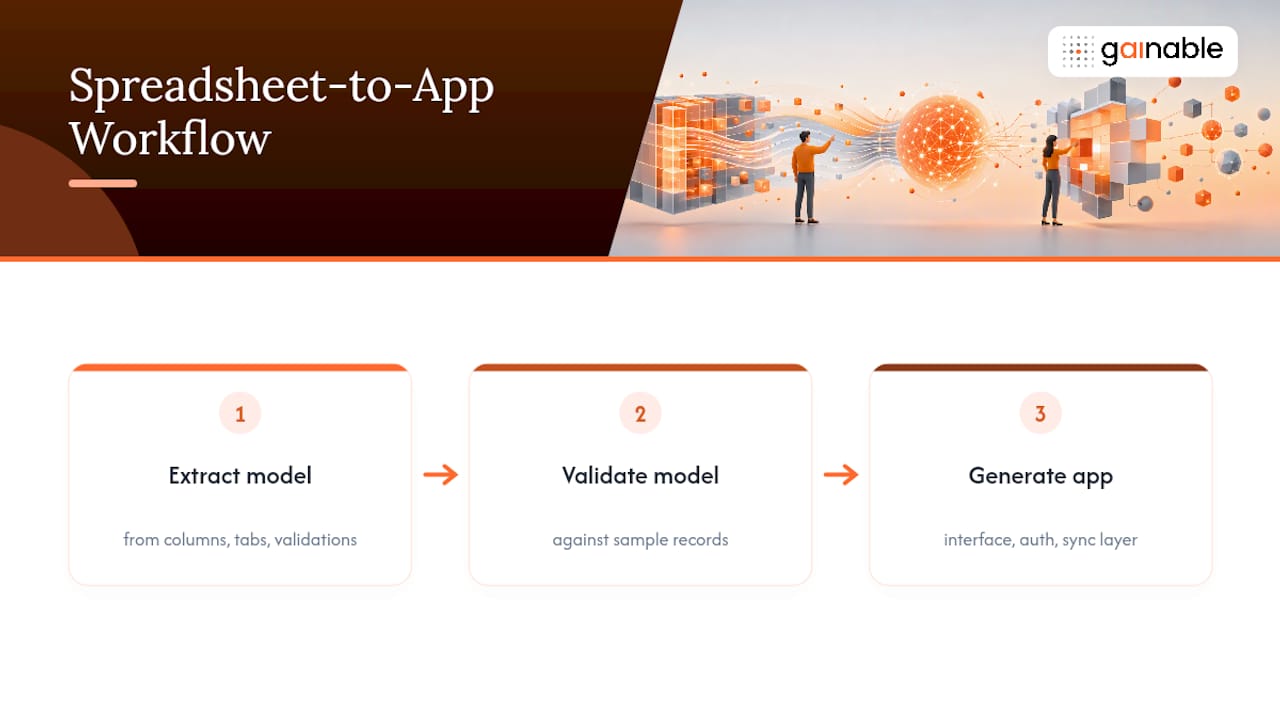
The process runs in three stages: extract the model from your existing sheets, validate it against sample records, then generate the interface, auth, and sync layer on top. You’re not describing an app into existence from a blank page. You’re pointing at data that already encodes your business logic and asking a platform to build the app that logic implies.
That distinction matters for accuracy. A prompt-driven builder guesses at structure from your instructions. A model-first builder reads your actual customer IDs, your actual status values, your actual order-to-line-item relationships, and builds around what’s really there.
When Should You Replace a Spreadsheet With an App?
Three signals tell you it’s time. First, concurrency problems: more than a couple of people editing the same file, with version conflicts, “who has it open” messages, and overwritten formulas. Second, you’ve become a single point of failure, the one person who understands the macros or the pivot logic well enough to fix it when it breaks. Third, someone from finance, legal, or a customer asks for an audit trail your spreadsheet can’t produce.
Once one of those hits, the math usually favors migrating. A scoped MVP typically ships in four to eight weeks, split roughly into one to two weeks of discovery and data modeling, two to four weeks of build, and one to two weeks of reconciliation and cutover. Expect the cost to scale with how many entities and integrations you’re connecting, not with how many rows you have.
Run this quick ROI check before committing:
- Add up hours per week spent on manual exports, emailing sheets, or copy-pasting between systems.
- Estimate the cost of the last data entry error that caused a missed order, a bad invoice, or a compliance flag.
- Count how many separate tools people check to get one full picture of a customer or order.
If that list takes longer than a minute to fill out, you already have your answer.
How Do You Map Spreadsheet Columns Into a Data Model?
Your spreadsheet already contains a data model. It’s just been flattened into rows and tabs instead of structured into entities. The job here is to un-flatten it: pull apart the customer info that’s repeated on every order row, the line items crammed into merged cells, the status column doing double duty as both a workflow stage and a filter. Migration blueprints consistently point to this step, not the interface, as the one that determines whether the resulting app actually works.
Work through it in this order:
- Identify entities. Look for anything that repeats across rows with the same attributes: customers, orders, line items, vendors, locations. Each one becomes a table.
- Draw relationships. Does one customer have many orders? Does one order have many line items? Note the cardinality; it decides your foreign keys.
- Set field-level rules. For every column, define type (text, number, date, currency), whether it’s required, and whether values are restricted to a set (a status dropdown, a region list).
- Add cross-field constraints. A discount field that can’t exceed the order total, a ship date that can’t precede an order date. These are the rules your spreadsheet enforces through habit, not through structure.
- Reconcile the “weird” cases. Every working spreadsheet has a tab with three exceptions in it nobody’s cleaned up. Find those before you import, not after.
Pro Tip: Pull a null-rate and distinct-values report on every column before you model anything. A field that’s 40% blank or has 200 “distinct” values because of inconsistent capitalization tells you where your cleanup backlog actually is, before you waste a week designing around dirty data.
Before handing this to whoever builds the app, whether that’s an internal team or a platform like Gainable, prepare three deliverables: an entity-relationship diagram, a sample dataset with the edge cases included, and a written validation spec listing every rule from step 3 and 4. That trio, more than any wireframe, is what separates a smooth build from a rebuild. For a deeper walkthrough of this exact process, see how data mapping works.
What Integration Strategy Keeps Your App and Source Systems in Sync?
Pick your authoritative source before you pick your sync method. If Stripe owns billing status and HubSpot owns deal stage, your app should treat those systems as the source of truth for those fields and sync everything else locally. Choose a primary key that’s genuinely unique and stable across every system you’re merging, usually email or a customer ID, never a name.
From there, you’re choosing between two sync patterns:
- Two-way sync works when people need to edit in either the app or the source tool and expect changes to show up on both sides within minutes. Best for CRM and billing data that changes throughout the day.
- Scheduled sync or change-data-capture works when the source system is high-volume but low-urgency, like a nightly inventory feed, and real-time reconciliation would be overkill.
Whichever you choose, your import scripts need to be idempotent. Re-running the same import twice should produce the same result, not duplicate records. Build a reconciliation check that compares row counts and key totals between source and app after every sync, and flag discrepancies automatically rather than waiting for someone to notice a number looks off.
Automated monitoring that flags anomalies and drafts a fix for review catches these mismatches faster than a person scanning a spreadsheet ever will, which is a meaningful part of why teams stop trusting manual checks once they’ve seen the alternative. Prioritize connectors that eliminate re-keying first: billing, CRM, and reporting tend to be where manual data entry costs the most hours. Sales teams specifically see this with reducing CRM data entry once two-way sync replaces the export-and-upload routine.
What Does a Phased Spreadsheet Migration Playbook Look Like?
A migration that skips phases is the one that fails in front of your whole team. Run it in four stages with hard checkpoints between each.
- Discovery and profiling. Shadow the people who actually use the spreadsheet daily, not just the manager who commissioned the project. Profile every column’s data types and error rates, and map the real workflow, including the manual workarounds nobody put in the training doc.
- MVP scope. Pick one measurable workflow, not the whole spreadsheet. Build import, authentication, an audit log, and one reporting view around it. Five to ten screens, covering list, record detail, create/edit, status changes, activity log, and a report, is usually enough for a working MVP.
- Parallel run. Run the app and the spreadsheet side by side. Diff the two daily, trace every discrepancy back to its cause (a missed field, a bad parse, a timing lag), and fix the cause rather than patching the symptom. As confidence builds, progressively lock editing in the spreadsheet so the app becomes the system of record by default.
- Cutover. Set a specific date, keep the spreadsheet as a read-only archive rather than deleting it, and have a rollback plan you can execute in under an hour if something breaks. Train each role separately since a warehouse lead and an accounting clerk need different screens explained differently.
The parallel-run phase is where trust actually gets built. Keeping the sheet as a visible fallback while the app proves parity on live data does more for adoption than any announcement email.
How Do You Govern and Test a Spreadsheet-to-App Migration?
Spreadsheets fail quietly. Someone overwrites a formula, nobody notices for three weeks, and the damage is already baked into four reports by the time it surfaces. Your app needs to close that gap by design, not by discipline.
Set role-based access before launch, not after: decide who can view, who can edit, and who can only see their own records. An audit log that timestamps every change and who made it isn’t optional if finance, legal, or a customer will ever ask “who touched this and when.”
Your test plan should cover:
- Import parity checks comparing sums, counts, and record totals between the old sheet and the new app.
- Edge-case tests against the weird rows you flagged during data modeling.
- UAT sign-off criteria defined in advance, tied to specific numbers matching, not “looks right.”
- Ongoing anomaly monitoring once you’re live, not just a one-time launch check.
Pro Tip: Define your UAT pass criteria as parity checks on totals, not visual review. “The sums match” is testable. “It looks fine” is not.
Some platforms extend that monitoring automatically. Gainable’s Gaia Autopilot watches live app data for anomalies and drafts an action for a person to approve, clearing recurring cleanup work before it becomes a backlog instead of after.
What NLP Techniques Make This Kind of App Generation Possible?
Behind the “read the spreadsheet, build the app” workflow sits a set of natural language processing techniques doing quieter, more specific work than a chatbot. Named entity recognition scans your column headers and cell contents to guess what kind of data a field holds, whether “Cust_Email” is an email address or “Ship_Dt” is a date, without you tagging anything manually.
Schema inference goes a layer deeper: it looks at value patterns across a whole column, not just the header text, to decide whether “Status” is a free-text field or a constrained set with five real options. Relationship detection compares columns across tabs, spotting that an “Order ID” in one sheet matches a foreign key pattern against another, which is how entity relationships get proposed automatically instead of drawn by hand.
Text normalization matters more than it sounds. Real spreadsheets have “NY,” “New York,” and “ny” in the same column, and resolving those into one canonical value before modeling begins prevents a false “200 distinct values” read on a field that really has five. Intent parsing, the layer people usually mean when they say natural language queries, matters most after the app exists, letting a user type “show me overdue invoices over $5,000” and get a filtered view instead of writing a query themselves.
Together these techniques are why the underlying process can move from raw spreadsheet to structured schema without a person hand-coding a data dictionary first.
Which Tools and Platforms Support This Kind of App Building?
The category splits into three tiers, and picking the wrong one is the most common expensive mistake in this space. General-purpose no-code builders handle simple CRUD apps and small teams well, but decision frameworks consistently flag them as the wrong fit once governance, scale, or complex integrations enter the picture, because they were built for forms, not for merging five systems into one record.
Enterprise low-code platforms sit a tier up, offering more integration depth at the cost of a longer build cycle and usually a dedicated administrator to maintain the workflows.
Data-model-first platforms occupy the third tier, and this is where Gainable operates. You point it at an Excel file, a Google Sheet, or both together, and it reads the columns, merges them into a single data model, and generates a working application from what’s already there, no prompt required. It connects to HubSpot, Stripe, Airtable, Salesforce, Jira, Linear, and more, merging records by a key you choose, and syncs both directions so the app writes back instead of drifting out of date. The platform’s approach to merge keys treats a deterministic, business-meaningful identifier like customer ID or email as the backbone of every reconciliation job, which is what keeps two-way sync from silently duplicating or orphaning records over time.
Custom development remains the right call only when your workflow logic is genuinely unique enough that no model-first extraction could infer it, which is rarer than most teams assume.
How Do You Design and Build a Natural Language Query Interface Step by Step?
Start with the data model, not the search box. A query interface is only as good as the schema underneath it, so steps one through three below are really a repeat of the data-modeling work, applied specifically to what people will ask.
- Catalog real questions. Sit with the people who’ll use the interface and write down the actual questions they ask today, out loud or in Slack: “which orders are late,” “who hasn’t paid in 60 days.” These become your test set.
- Map questions to fields. For each question, identify which entity, field, and filter it resolves to. This is where your earlier entity-relationship work pays off directly.
- Define the intent categories. Most operational queries fall into a handful of types: filter, aggregate, compare, or lookup. Building for these four covers the overwhelming majority of real usage.
- Build a fallback path. When the system can’t confidently parse a query, it should say so and offer a structured filter as a backup, not guess and return the wrong answer silently.
- Test against real phrasing, not clean phrasing. Run your question catalog from step one through the interface before launch, including the sloppy, typo-ridden versions people actually type.
- Instrument for failure. Log every query that returns zero results or gets a low-confidence match. That log becomes your refinement backlog.
The step people skip is the first one. Building the parsing engine before you know the ten questions people actually ask is building blind.
How Do You Train and Refine Natural Language Query Accuracy Over Time?
Accuracy on day one is never the ceiling, it’s the floor you improve from. The single highest-leverage input is the failure log from step six above: every query that returned nothing or the wrong thing is a labeled training example sitting in your logs for free.
Review that log on a fixed cadence, weekly during the first month after launch, then monthly once volume stabilizes. Group failures into patterns rather than fixing them one by one: if “past due” and “overdue” both fail, that’s a synonym gap, not two separate bugs. Add synonym mappings for the terms your specific team actually uses, since “clients” versus “accounts” versus “customers” varies by department and nobody’s vocabulary is wrong.
Expand your intent categories only when a real pattern demands it. Adding a “trend” intent because three people asked about month-over-month change is worth it. Adding it speculatively because it seems useful is how these systems get bloated and slower to maintain.
Feed corrected queries back into the system as confirmed examples rather than just fixing the individual case. The goal is a system that generalizes from the correction, not one that gets a hardcoded patch for every single failed phrase. Set a lightweight review step where a person spot-checks a sample of successful queries too, not just failures, since a query that returns something isn’t automatically returning the right something.
What Ambiguity and Error Handling Problems Should You Expect?
Ambiguous queries are the norm, not the exception, and the biggest mistake teams make is designing as if users will type precisely. “Show me big orders” means nothing without a defined threshold. “Recent customers” could mean created recently, active recently, or contacted recently, and three different users will mean three different things by the same two words.
Handle this with clarification, not guessing. When a query is genuinely ambiguous, the interface should ask a short follow-up (“Do you mean orders over a specific amount?”) rather than silently picking an interpretation and returning confident-looking wrong results, which erodes trust faster than an honest “I’m not sure.”
Homonyms inside your own data cause a quieter version of the same problem. “Status” might refer to order status in one context and account status in another, and a query that doesn’t specify which one needs a disambiguation step, not a coin flip.
Negation trips up query parsing more than most teams expect: “orders not shipped” and “orders shipped” share almost every word, and a system that weights word overlap over structure will get this wrong regularly if it isn’t specifically tested for it.
The most reliable mitigation is the fallback path from the design process: always give the user a way to see the structured filter equivalent of their query before committing to it, so they can catch a misread in two seconds instead of discovering it in a wrong report an hour later. Treat every ambiguous query your log catches as a permanent addition to your synonym and clarification rules, not a one-off fix.
What Do Real Spreadsheet-to-App Builds Actually Look Like?
The most common successful pattern isn’t glamorous: an operations team with a shared order-tracking spreadsheet, three or four editors, and a recurring problem where two people update the same row and one version wins by accident. The fix is rarely a custom platform. It’s mapping that sheet’s columns into an orders entity with a linked line-items table, adding role-based edit permissions, and generating an app with the same statuses the team already used, just enforced instead of suggested.
Sales-ops teams following this pattern usually start with the CRM sync piece specifically, since manual re-keying between a pipeline sheet and HubSpot is one of the most visible time sinks in that role, and closing that loop with two-way sync is often the single change that makes the rest of the migration feel worth it.

Warehouse and inventory teams tend to follow a similar arc but with a different pressure point: the spreadsheet doesn’t fail on concurrency, it fails on reconciliation, when a physical count and the sheet’s running total drift apart with no record of when or why. An app with an audit log and a locked calculation layer closes that gap directly, because the source of the discrepancy becomes traceable instead of mysterious.
What ties these cases together isn’t the industry. It’s that the spreadsheet had already encoded the correct business logic; the migration’s job was structural, not inventive. The teams that struggled were the ones who tried to redesign the workflow at the same time as the platform, instead of migrating what already worked and improving it after.
What Do Most Migration Guides Get Wrong?
Most advice on this topic treats the spreadsheet like a design problem, something to be reimagined into a better interface. That’s backward. Your spreadsheet is closer to a requirements document than a rough draft: the column order, the dropdown values, the conditional formatting rules people added over three years, all of that is business logic that took real time to arrive at. Treating it as scrap to be redesigned throws away the most valuable input you have.
The trap I see most often is scope creep dressed up as thoroughness: a team decides that since they’re building an app anyway, they should also fix the approval workflow, add a new reporting layer, and rename half the fields to be “clearer.” Every one of those additions is legitimate on its own and fatal in combination, because now the MVP has no fixed boundary and the parallel run never has a stable target to reconcile against.
The second trap is building for the manager’s mental model of the workflow instead of the actual user’s. Power users know where the sheet lies, where a formula silently fails, where people paste values instead of using the dropdown because the dropdown is missing an option. Bringing them into design review in week one, not week five, catches those gaps before they become production bugs. It’s also worth resisting the urge to recreate every tab as a screen; most sheets have two or three tabs doing real work and several more that exist because someone once needed a scratchpad.
The teams that do this well treat “must-have,” “guideline,” and “later” as three separate buckets from day one, and defend that MVP boundary even when a stakeholder asks for “just one more field” in week three.
How Does Gainable Handle This Workflow End to End?
Gainable is built specifically for the process this article just walked through. Drop in a spreadsheet, or point it at Excel and Google Sheets at once, and it reads the columns, merges them into a single data model, and generates a working app from what’s already there. No prompt required; your columns are the spec.
The generated app comes with authentication, role-based permissions, an audit log, live dashboards, and two-way sync so your source spreadsheet or connected tool never goes stale. Gainable’s connector library covers HubSpot, Stripe, Airtable, Salesforce, Jira, Linear, and more, merged by whatever key you choose, email or customer ID, so a customer’s data stays unified across every system that touches it. Once the app is live, Gaia Autopilot watches your data for anomalies and drafts actions for a person to approve, clearing recurring cleanup work automatically. Collaboration, chat, comments, and file sharing live right inside the records they reference, so conversations stop happening in a separate Slack thread disconnected from the data they’re about.
If you’ve got a spreadsheet running an actual workflow today, the fastest way to see this in action is to try the Excel-to-app builder with your own file and see what data model it extracts before you commit to a bigger migration plan.
Frequently Asked Questions
Can you really create an app using natural language queries without writing any code? Yes, when the platform is data-model-first rather than prompt-first. Gainable reads your spreadsheet’s columns and existing structure to infer the schema automatically, so you’re not writing code or crafting a detailed prompt, you’re pointing the tool at data that already encodes your rules.
How long does a spreadsheet-to-app migration usually take? A scoped MVP typically runs four to eight weeks, covering discovery and data modeling, the build itself, and a reconciliation period before cutover. Timelines stretch with the number of integrations and entities involved, not simply with row count.
What happens to my spreadsheet after the app goes live? Keep it as a read-only archive rather than deleting it, at least through one full business cycle. That gives you a rollback option and a reference point if a reconciliation question comes up months later.
Do I need a developer to set up natural language query interfaces on my app? Not with a data-model-first platform. The schema extraction and query mapping happen automatically once your entities and fields are defined; your job is mostly reviewing the model for accuracy and refining based on real usage logs afterward.
What’s the biggest risk during migration? Scope creep. Trying to redesign the workflow while also migrating the platform removes the fixed target your parallel run needs for reconciliation, and it’s the single most common reason migrations stall past their planned timeline.
Sources
- Spreadsheet to Web App: Migration Guide | QUANT LAB USA
- Spreadsheet-to-Platform Migration Blueprint | CoreLine