

App sharing in Microsoft Teams is defined as the process of making an app accessible and interactive within team scopes like chats, channels, groups, or meetings to support collaboration and workflow. The term "app sharing" covers several distinct mechanisms: user-level sharing through the Teams interface, administrative policy controls at the tenant level, meeting-stage sharing via the Share to Stage feature, and embedding apps as tabs inside channels using tools like Power Apps. Understanding how the team app sharing process works across all these layers is what separates teams that get real value from Teams from those that treat it as a glorified chat tool.
How does user-level app sharing in Microsoft Teams work?
The most direct way to share an app in Teams is through the Teams client interface itself. Sharing an app with a person, group, or channel involves right-clicking the app icon in the left sidebar or selecting the app from the Apps menu, then choosing the "Share app" option. From there, you type in the names of recipients, whether that's an individual colleague, a group chat, or an entire channel.
Here is the step-by-step flow:
- Open Microsoft Teams and locate the app in your left sidebar or Apps menu.
- Right-click the app icon and select "Share app" from the context menu.
- Type the name of the person, group chat, or channel you want to share with.
- Add an optional message to give context about why you're sharing the app.
- Send the share notification. Recipients get an alert and can choose to add the app or view its details.
- Alternatively, copy the app link and paste it directly into any Teams conversation.
When a colleague receives the notification, they see a card in their chat with options to add the app to their own Teams client or learn more about it. This is a lightweight way to spread app adoption without requiring IT involvement. The copy link option is particularly useful when you want to share an app across multiple conversations quickly.
Pro Tip: When sharing an app with an entire channel, the notification appears in the channel feed. This is more visible than a direct message share, so use it when you want the whole team to notice and adopt the app.
One nuance worth knowing: sharing an app this way makes it discoverable, but it does not guarantee the recipient can fully use it. That depends on the admin policies governing your tenant, which is the next layer you need to understand.
What administrative policies govern app sharing and access in Teams?
Admin policies are the invisible layer that determines whether app sharing actually works for your team. App permission policies control which apps users are allowed to use, while app setup policies control which apps appear pre-installed or pinned in the Teams client for specific user groups. These two policy types serve different purposes and are often confused.
Here is how they differ in practice:
- App permission policies act as an allow or block list. Admins can allow all apps, block specific apps, or restrict users to only approved apps. If an app is blocked by a permission policy, a user who receives a share notification cannot add or use that app, regardless of who shared it.
- App setup policies determine what users see in their Teams sidebar by default. Admins can pre-install apps for specific Microsoft 365 security groups, ensuring that a sales team sees CRM-connected apps while a warehouse team sees inventory tools.
- Admin consent is required for apps that request access to organizational data. Without it, users may see an app but hit a permissions wall when they try to connect it to company data.
| Policy type | What it controls | Who sets it |
|---|---|---|
| App permission policy | Which apps users can install and use | Teams admin |
| App setup policy | Which apps are pre-installed or pinned | Teams admin |
| Admin consent | Data access permissions for third-party apps | Azure AD admin |
The practical implication is significant. App sharing and installation are distinct processes: a user can pin an app and see it in their sidebar, yet still lack the permissions needed for full functionality. This gap causes confusion when team members report that a shared app "doesn't work" for them. The fix is almost always at the policy level, not the user level. Before rolling out any app broadly, confirm that permission policies allow it for all intended users and that admin consent has been granted where required.
How does app sharing work in Teams meetings with Share to Stage?
Share to Stage is the feature that makes collaborative app sharing in Teams meetings genuinely useful, and it works differently from screen sharing in ways that matter. Share to Stage lets a presenter push an app directly onto the meeting stage so all attendees can see it in real time. The key distinction: attendees view the app but only the presenter interacts with it.

This design choice is intentional. Only one presenter controls the app state during a meeting, which prevents multiple users from making conflicting changes simultaneously. Think of it as a live demo mode where the presenter drives and the audience watches, rather than a free-for-all editing session.
Key points about Share to Stage:
- Developers use the TeamsJS API method
shareAppContentToStageto programmatically trigger sharing from within an app. - The feature is available in scheduled meetings and requires the presenter role. Attendees cannot initiate Share to Stage.
- Share to Stage is not available on all platforms. Mobile clients have limited support, so plan your meeting setup accordingly.
- Screen sharing, by contrast, shares your entire screen or a window. It does not preserve app interactivity for the audience. Share to Stage keeps the app running natively in Teams, which means better performance and a cleaner visual experience.
Pro Tip: If you are building a custom app intended for meeting use, design it so the presenter controls a single shared state rather than expecting multiple users to interact simultaneously. This aligns with how Share to Stage works and avoids a confusing user experience.
The practical use case here is strong. A sales leader can share a live pipeline dashboard during a team meeting, walk through deals, and update statuses in real time while the team watches. No screen lag, no "can you see my screen?" moments.
What are the options for embedding and distributing Power Apps inside Teams channels?
Embedding Power Apps inside Teams channels is the most durable approach to sharing applications in Teams because it makes apps permanently discoverable rather than dependent on someone remembering to share a link. Embedding a Power App as a tab in a channel or chat puts it front and center every time a team member opens that channel.
Here is how to embed a Power App in a Teams channel:
- Open the Teams channel where you want to add the app.
- Click the "+" icon next to the channel tabs at the top.
- Search for "Power Apps" in the tab gallery and select it.
- Choose the canvas app or model-driven app you want to embed.
- Name the tab and save. The app now appears as a permanent tab in that channel.
Prerequisites matter here. You need a Power Apps license, and the app itself must already exist as a canvas app or model-driven app in your Power Platform environment. Without the license, the Power Apps tab option will not appear in the gallery.
For model-driven apps specifically, the sharing process adds a layer of complexity. Sharing a model-driven app requires assigning security roles or specific users and teams within the Power Platform admin center, then distributing the app URL or a QR code to grant access. Simply embedding the tab is not enough if users do not have the correct security role assigned.
| App type | Sharing method | Key requirement |
|---|---|---|
| Canvas app | Embed as tab or share link | Power Apps license |
| Model-driven app | Assign security roles, share URL or QR code | Security role assignment in Power Platform |
| Custom Teams app | Share via Teams Apps menu or admin deployment | Admin permission policy approval |
Embedding apps as tabs is the recommended approach over ad-hoc link sharing because it creates a consistent, discoverable experience. When an app lives as a tab, new team members find it automatically. When it exists only as a link in a chat message, it gets buried within days.
How do the layers of app sharing combine to improve team workflows?
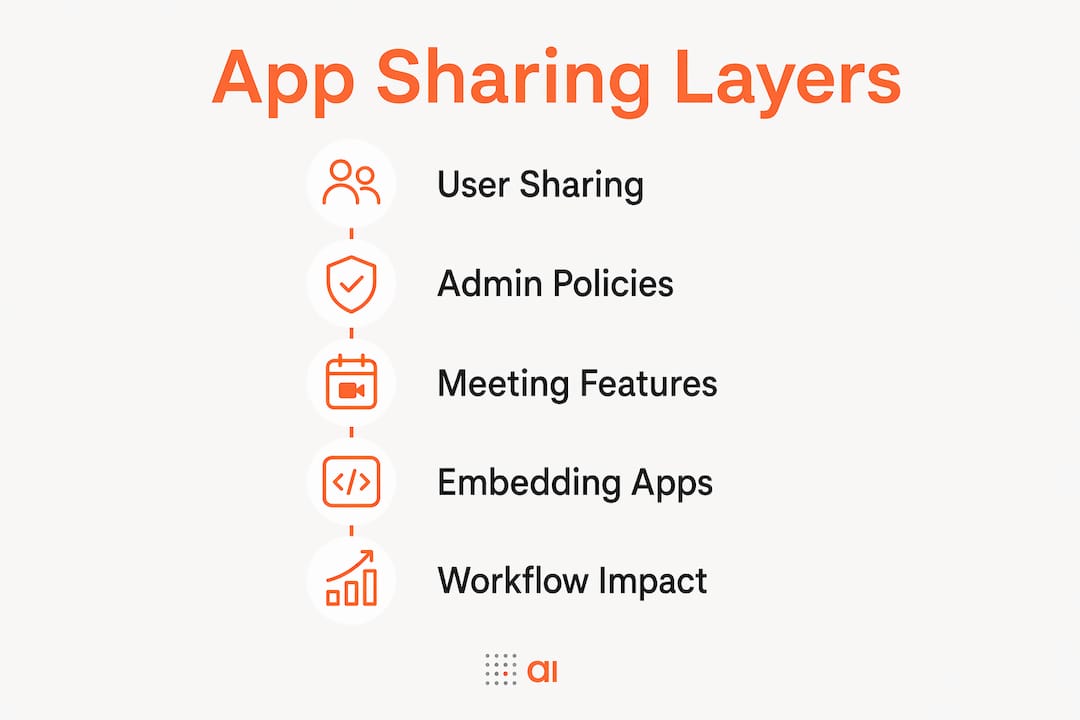
The real power of sharing applications in Teams comes from using all three layers together, not treating them as separate options. User-level sharing drives initial adoption. Admin policies set the guardrails. Meeting-stage sharing enables live collaboration. Tab embedding creates permanent access points. When these layers are aligned, your team stops hunting for tools and starts using them.
A practical workflow example: a project manager shares a status tracking app with a new channel via the Teams Apps menu. The admin has already approved the app via permission policy, so every channel member can use it immediately. The app is then embedded as a channel tab for permanent access. During weekly standups, the project manager uses Share to Stage to walk through the tracker live. No one needs to ask "where's the link?" because the app is always one click away.
There are common pitfalls that break this flow:
- Sharing an app before admin consent is granted, which leaves recipients unable to connect the app to organizational data.
- Embedding a tab without assigning the correct security roles for model-driven apps, resulting in blank screens for users.
- Relying on Share to Stage without testing on mobile clients first, since platform support varies.
"Teams users and admins must balance individual app sharing with organization-wide policies to ensure secure and smooth collaboration." — Microsoft Support
The distinction between app availability and app permission is the most overlooked detail in the entire process. A user can have an app pinned in their sidebar and still be blocked from using it because a permission policy or missing admin consent is in the way. Audit both before you assume an app is ready to share broadly.
Key takeaways
Effective app sharing in Teams requires aligning user-level sharing, admin permission policies, meeting-stage features, and embedded tab experiences to create a workflow that teams actually use consistently.
| Point | Details |
|---|---|
| User-level sharing starts adoption | Right-click any app icon in Teams to share it with people, groups, or channels instantly. |
| Admin policies control actual access | Permission policies and admin consent determine whether shared apps function, not just whether they appear. |
| Share to Stage is not screen sharing | Share to Stage runs the app natively in the meeting with presenter-only interaction, preserving app integrity. |
| Tab embedding beats link sharing | Embedding Power Apps as channel tabs makes apps permanently discoverable and reduces adoption drop-off. |
| Model-driven apps need security roles | Sharing a model-driven Power App requires assigning security roles in Power Platform before users can access it. |
What I've learned from watching teams get app sharing wrong
I've watched dozens of teams roll out Microsoft Teams apps with genuine enthusiasm, only to hit a wall two weeks later when half the team reports the app "doesn't work." Almost every time, the root cause is the same: someone shared the app before the admin policies were in place. The user experience of receiving a share notification is smooth enough that people assume everything is ready. It rarely is.
The best practice I keep coming back to is pilot testing with a small group before any broad rollout. Share the app with five people from different roles, confirm they can authenticate, access data, and use the app without hitting permission errors. Only then expand to the full team. This single step eliminates the majority of support tickets I see teams generate around app sharing.
On the meeting-stage side, I think most teams underuse Share to Stage because they default to screen sharing out of habit. Screen sharing is fine for showing a document, but it is a poor substitute for a live app. If you are presenting data during a meeting, Share to Stage gives your audience a cleaner view and keeps your app running at full performance.
My honest recommendation: stop treating tab embedding as optional. Every app your team uses regularly should live as a channel tab. Links get lost. Tabs do not.
— Rickard
Build and share team apps without the complexity
If the layers of Teams app sharing feel like a lot to manage, you are not alone. Most teams spend more time configuring permissions and chasing down links than actually using their apps.
Gainable takes a different approach. It connects directly to your live data sources, including HubSpot and Stripe, and auto-generates apps built around your team's actual workflows. No coding required. Apps are ready to embed in your Teams channels from day one, with built-in collaboration tools that keep conversations tied to the data rather than scattered across chat threads. You can refine any app through plain-language queries, so adjustments take minutes instead of days. If your team is ready to stop wrestling with configurations and start using apps that actually fit how you work, explore Gainable's app builder to see what's possible.
FAQ
How do you share an app in Microsoft Teams?
Right-click the app icon in the Teams sidebar or find it in the Apps menu, then select "Share app" and enter the names of people, groups, or channels. Recipients receive a notification and can add the app directly from that card.
What is the difference between app permission policies and app setup policies in Teams?
App permission policies control which apps users are allowed to install and use. App setup policies control which apps are pre-installed or pinned in the Teams client for specific user groups. Both are managed by a Teams admin.
What is Share to Stage in Microsoft Teams?
Share to Stage is a meeting feature that lets a presenter push an app onto the meeting stage so all attendees can view it in real time, while only the presenter can interact with the app. It is distinct from screen sharing because the app runs natively inside Teams rather than as a screen capture.
Do you need a license to embed Power Apps in Teams?
Yes. Embedding a Power App as a tab in a Teams channel requires a Power Apps license, and the app must already exist in your Power Platform environment. Model-driven apps also require security role assignments before users can access the embedded app.
Why can a user see a shared app but not use it?
App sharing and app installation are separate from app permissions. A user can receive a share notification and pin an app, but still be blocked by an admin permission policy or missing admin consent that prevents the app from connecting to organizational data.