

Converting a spreadsheet into a working application, known in no-code circles as a "spreadsheet-to-app build," is now achievable without writing a single line of code. Platforms like Microsoft Power Apps, Glide, and AppSheet read your existing data structure and generate functional screens automatically. If you want to create a data app from an existing spreadsheet, the process starts with clean, well-formatted data and the right platform for your team's workflow. This guide walks you through preparation, platform choices, step-by-step setup, and the pitfalls most teams hit on their first attempt.
What data preparation steps ensure a smooth spreadsheet-to-app transformation?
Clean data is the single biggest factor in a successful build. Formatting your spreadsheet as a formal table reduces manual mapping requirements by 80–90% when importing into no-code platforms. That number means the platform does the heavy lifting instead of you.
Before you upload anything, run through these preparation steps:
- Use a formal table structure. In Excel, select your data range and press Ctrl+T to convert it to a named table. Platforms like Power Apps and AppSheet recognize this format automatically.
- Write clear, consistent column headers. Avoid spaces or special characters. "Order_Date" works better than "Order Date (MM/DD)".
- Remove merged cells. Merged cells break import logic on every major platform. Split them before you start.
- Standardize data types. All dates in one column should follow the same format, such as MM/DD/YYYY. Mixed formats cause sync errors later.
- Delete blank rows and columns. A blank row in the middle of your data tells the platform your table ends there.
Checkbox columns, consistent date formats, and clear headers are the three preparation steps that prevent the most common import failures. Think of this stage as laying a foundation. A shaky foundation means a shaky app.
Pro Tip: Name your Excel table something descriptive, like "SalesOrders" or "InventoryTracker," before importing. Platforms carry that name into the app, which saves you time renaming screens and data sources later.

One more thing worth doing: remove any formula columns that reference external workbooks. External references break when the file moves to cloud storage. Replace them with static values or rebuild the logic inside the app itself.
Which no-code platforms let you build apps from spreadsheets, and how do they differ?
Three platforms dominate this space in 2026: Power Apps, Glide, and AppSheet. Each takes a different approach to how you connect your data and what kind of app you get at the end.
| Platform | Connection method | Best for | Starting price | App type |
|---|---|---|---|---|
| Power Apps | Upload to Dataverse or link cloud Excel | Enterprise teams, complex workflows | Free tier available | Web and mobile |
| Glide | Import Excel or Google Sheets directly | Fast mobile apps, field teams | Free tier available | Mobile-first |
| AppSheet | Connect Google Sheets, Excel, or databases | Flexible customization, offline use | Free tier available | Web and mobile |
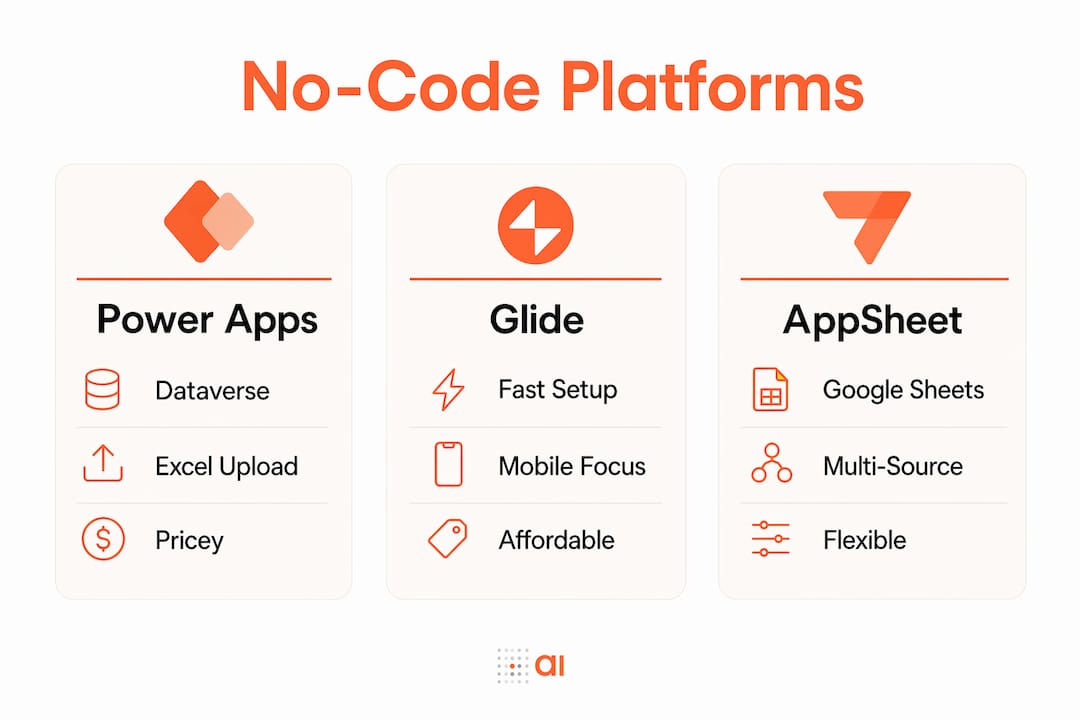
Power Apps lets you upload an Excel file as a Dataverse table or connect directly to a cloud-stored workbook. Dataverse storage adds access control and lets multiple apps share the same dataset. That matters for operations teams managing data across departments.
Glide builds a basic app screen from your spreadsheet structure in under 10 minutes. That speed makes it the right choice when you need a working prototype fast, especially for mobile field teams who need a simple list-and-detail view.
AppSheet starts from "Create > App > Start with existing data" and supports Google Sheets, Excel, and several database formats. Its customization depth sits between Glide's simplicity and Power Apps' complexity. Sales and operations teams that need offline access tend to favor AppSheet.
For teams evaluating all three, the best no-code app builders comparison covers pricing tiers and feature depth in detail.
How to build an app from your spreadsheet, step by step
The process follows the same core sequence across all major platforms. Here is the full walkthrough.
-
Prepare and save your spreadsheet to cloud storage. Upload your Excel file to OneDrive, SharePoint, or Google Drive. Local files cause sync problems after publishing. Rename the file clearly, such as "InventoryApp_Source.xlsx."
-
Create a new app and connect your data source. In Power Apps, select "Start with data" and choose your Excel file. In Glide, click "New App" and select your file from the connected drive. In AppSheet, use "Start with existing data" and point to your file location.
-
Map your data types and review auto-generated screens. Every platform generates a default list screen and a detail screen. Review each column's data type. Confirm that date columns read as dates, number columns read as numbers, and text columns are not misread as IDs.
-
Add search, filter, and edit functions. In Power Apps, insert a Gallery control and connect it to your table. Add a SearchBar control linked to the gallery's Items property. In Glide, toggle on "Filter" and "Search" from the screen settings panel. These two features alone replace most of what teams use spreadsheets for daily.
-
Set permissions and sharing rules. Decide who can view, edit, or delete records. Power Apps uses Azure Active Directory roles. Glide uses email-based access lists. AppSheet uses a built-in security filter tied to user email columns in your data.
-
Test on a real device before publishing. Open the app on your phone or tablet. Check that forms submit correctly, that filters return accurate results, and that edits save back to the source file. Fix any broken column references before sharing with your team.
Pro Tip: Publish a "version 1" with only the core screens working. Add advanced features like dashboards and automation in a second round. Teams that try to build everything at once rarely finish.
What common challenges arise when converting spreadsheets to apps?
Data formatting errors and syncing issues are the two most frequent problems teams face after their first import. Knowing what to expect saves hours of troubleshooting.
- Import errors from inconsistent data types. A column with mostly numbers but one text entry will confuse the platform's type detection. Fix it in the spreadsheet before re-importing.
- Performance slowdowns with large datasets. Apps built on Excel files with more than 5,000 rows often load slowly. Move large datasets to Dataverse in Power Apps or a connected database in AppSheet for better performance.
- Permissions conflicts on shared files. If your source Excel file sits in a shared folder with restricted access, the app will fail for users who lack file permissions. Store the source file in a location every app user can reach.
- Data going stale after edits. Some platforms cache data locally. In Glide, force a data refresh from the settings panel. In Power Apps, use the Refresh() function on your data source to pull the latest records.
- Broken formulas after upload. Excel formulas do not transfer into app logic. Recreate calculated fields using the platform's built-in formula language, such as Power Apps' formula bar or AppSheet's expression editor.
The pattern behind most of these problems is the same: the spreadsheet was not built with an app in mind. Going back to fix the source data is almost always faster than trying to patch the app around bad inputs.
Which advanced features can take your data app beyond basic spreadsheet functions?
A well-built spreadsheet-to-app conversion gives you a working tool. Advanced features turn that tool into something your team actually prefers over the original spreadsheet.
AI tools like Quickbase's AI Spreadsheet Import automatically generate app structures that preserve spreadsheet data and formulas with minimal manual setup. AI-assisted builds cut initial configuration time significantly for teams with complex data.
Platforms increasingly support real-time collaboration, AI assistants, and CRM connections that push apps well beyond what any spreadsheet can do. The most valuable advanced features to add include:
- Workflow automation. Trigger email alerts, status updates, or approval requests when a record changes. Power Apps connects to Power Automate for this. AppSheet has a built-in automation editor.
- In-app collaboration. Comments and chat threads tied to specific records keep conversations in context. Teams stop emailing screenshots of spreadsheet rows.
- Live data connectors. Link your app to a CRM like HubSpot or a payment platform like Stripe. Your app reflects live business data, not a static export from last Tuesday.
- Multiple data source linking. Connect your inventory spreadsheet to your orders spreadsheet through a shared ID column. Apps handle relational data far better than side-by-side spreadsheet tabs.
- Dashboards and charts. Add a summary screen showing totals, trends, and status breakdowns. This is the feature that makes managers stop asking for weekly email reports.
Key takeaways
The fastest path to a working data app is a clean, table-formatted spreadsheet imported into the right no-code platform for your team's size and workflow.
| Point | Details |
|---|---|
| Format data as a table first | Converting your spreadsheet to a formal table reduces import errors by 80–90%. |
| Match platform to use case | Use Glide for fast mobile builds, Power Apps for enterprise control, AppSheet for flexible customization. |
| Follow a six-step build sequence | Prepare, connect, map, configure, set permissions, and test before publishing. |
| Fix source data, not the app | Most post-import errors trace back to inconsistent formatting in the original spreadsheet. |
| Add automation and live data last | Build core screens first, then layer in workflows, connectors, and dashboards in a second pass. |
Spreadsheets served us well. Apps serve us better.
I have watched teams spend years defending their spreadsheets. The logic makes sense at first. The file is familiar, it is already built, and everyone knows where it lives. But after seeing what happens when those same teams finally make the switch to a proper app, I cannot unsee the gap.
The real cost of a spreadsheet is not the file itself. It is the person who maintains it. Someone on your team is the human middleware, the one who copies data between tabs, sends the weekly update email, and fixes the broken formula after someone edited the wrong cell. That person's time is expensive, and it is being spent on work a well-built app does automatically.
My honest recommendation: do not wait for the perfect moment to build your first app. Start with your messiest, most-emailed spreadsheet. Clean it up, run it through Glide or AppSheet, and publish something basic within a week. The advantages of custom apps over spreadsheets become obvious the moment your team stops asking you to resend the file.
No-code platforms in 2026 are genuinely good. The barrier is not the technology anymore. It is the habit of reaching for the spreadsheet first.
— Rickard
How Gainable turns your spreadsheet into a working team app
Your spreadsheet already contains the logic your team runs on. Gainable reads that structure and builds a working app around it, without requiring you to configure screens, map fields manually, or write formulas from scratch.
Gainable connects to Excel, Google Sheets, HubSpot, Stripe, and other live data sources through its data connectors platform. The app it generates reflects your actual workflow, not a generic template. Built-in chat and comments keep your team's conversations tied to the records they are discussing. The Excel to app builder is the fastest way to see what your data looks like as a real application. Drop your spreadsheet in and get a working app back.
FAQ
Can I build an app from an Excel spreadsheet without coding?
Yes. Platforms like Power Apps, Glide, and AppSheet generate app screens directly from your spreadsheet structure without requiring any code.
How do I prepare my spreadsheet before converting it to an app?
Format your data as a named Excel table, use clear column headers, remove merged cells, and standardize date formats. These steps prevent the most common import errors.
Which platform is fastest for building a mobile app from a spreadsheet?
Glide builds a basic mobile app from an Excel or Google Sheets file in under 10 minutes, making it the fastest option for teams that need a working prototype quickly.
What happens to my Excel formulas when I convert the spreadsheet to an app?
Excel formulas do not transfer automatically. You need to recreate calculated fields using the platform's built-in formula editor, such as Power Apps' formula bar or AppSheet's expression editor.
Can my app stay connected to the live spreadsheet after I publish it?
Yes. Platforms like Power Apps and AppSheet maintain a live connection to your cloud-stored Excel file, so changes in the app write back to the spreadsheet in real time.